Registration & pre-event page settings

Customise your landing page to contain important information about your event and add your desired registration resources.

Location

SettingsGeneral SettingsRegistration & Pre-event Page Settings

General

What is your URL event name (rename this)?

Purpose: In the URL of your event, the text after your event number can be customised to fit the tone of your event.

Input: Text field (3–20 characters). Lowercase letters, numbers, and underscores only.

Default value: Empty.

Behaviour: Adding text will replace the short name of the event that is shown in the event URL. Leaving the field empty will revert it to the original name.

Example:

Default URL (no customisation)
Customised URL
Allow integrations to synchronise data

Purpose: Toggle whether connected integrations e.g. Momice, Weeztix, Eventbrite are able to add and update users and content in Let's Get Digital.

Input: Boolean (True/False)

Default value: True

Behaviour: When disabled, all integrations are fully inactive. No data is imported, exported, or synchronised. This acts as a global kill switch for all integrations.


Registration

Only allow unique email addresses

Purpose: Require all users to have distinct email addresses.

Input: Boolean (True/False)

Default value: False (in most cases); automatically set to True when the container mode is set to Unique emails. See Subscription Containers for more information.

Behaviour: When true, new users must register with unqiue email addresses. Existing users are unable to have their email address updated to one that matches that of an existing user.

Attempting to add users with identical email addresses the import tool will result in errors.

Duplicate users added via ticketing integrations will receive an alias (a plus + followed by additional characters before the @) to ensure uniqueness. Emails will still be sent to the original email address.

Use complex registration codes

Purpose: Increase the complexity of registration codes used to log into the platform by inserting special (non-alphanumeric) characters.

Input: Boolean (True/False)

Default value: False

Behaviour: When true, all new users created in Let's Get Digital will have registration codes that are 8 characters long and include at least:

  • 1 uppercase letter

  • 1 lowercase letter

  • 1 number

  • 1 symbol (e.g. $, !, ?, *)

Registration codes are used to log into the App and/or Virtual Event.

Default registration form

Purpose: Set the primary registration form to be featured on the pre-event page of the event.

Input: Dropdown (single-select)

Default value: Empty

Behaviour: On the pre-event page, a Register here! button will be shown. Clicking this button opens the selected registration form.

Enable automatic matching of users and companies based on company name

Purpose: Automatically link users to an existing company when the company name entered in their profile exactly matches an existing company name.

Input: Boolean (True/False)

Default value: False

Behaviour: When enabled, users are automatically linked to an existing company if the company name field in their profile exactly matches the company name in the system.

Role assignment

  • If the Exhibitor Portal is active: matched users are added as Exhibitor Crew.

  • If the Exhibitor Portal is not active: matched users are added as employees of the company.

Note: Disabling this feature does not remove existing links. New users will no longer be matched automatically.

Enable automatic matching of users and companies based on email and company website

Purpose: Automatically link users to an existing company when the domain of their email address matches the domain of a company’s website.

Input: Boolean (True/False)

Default value: False

Behaviour: When enabled, users are automatically linked to an existing company if the domain of their email address corresponds to the domain of a company's website in the Website field in a company's Contact Info tab.

Role assignment

  • If the Exhibitor Portal is active: matched users are added as Exhibitor Crew.

  • If the Exhibitor Portal is not active: matched users are added as employees of the company.

Note: Disabling this feature does not remove existing links. New users will no longer be matched automatically.

Restrict company auto-matching by user tag

Purpose: Limit who will be eligible for automatic matching with a company.

Input: Multi-select (tags)

Default value: Empty

Behaviour: When enabled, automatic company matching is restricted to users with at least one of the selected tags. If no tags are selected, matching applies to all users.

Note: Tags can be added or removed at any time. Changes only affect new matches; existing links are not modified

Enable RSVP module

Purpose: Allow event organisers to send RSVP invitations to users who have been created in advance. Users can accept (and provide additional details via a registration form) or decline, giving organisers insight into attendance.

Input: Boolean (True/False)

Default value: False

Behaviour: When enabled, organisers can send RSVP emails using the default RSVP template or custom emails with dynamic fields and buttons.

RSVP emails link to an existing registration form created by the organiser.

RSVP outcome

  • Users who accept the RSVP receive the tag Registration Accepted.

  • Users who decline the RSVP receive the tag Registration Declined.

Show registered sessions in registration forms that are full

Purpose: Control whether sessions with an attendance cap are shown in registration forms once they are fully booked.

Input: Boolean (True/False)

Default value: True

Behaviour: When enabled, fully booked sessions are shown in the session picker within registration forms. These sessions are displayed as greyed out, labelled (Full), and cannot be selected.

When disabled, fully booked sessions are hidden from the session picker.


Pre-event page

Show help button on the pre-event page

Purpose: Display a Helpdesk button on the pre-event page that allows users to contact support without logging in.

Input: Boolean (True/False)

Default value: False

Behaviour:

A help button is displayed in the top-right corner of the pre-event page.

When clicked, users can contact support if they are experiencing issues accessing or using the event platform.

  • If a Helpdesk manager is active, users can start a live chat.

  • Otherwise, users can send a support request via email.

Show companies on pre-event page

Purpose: Show companies present at your event using an interactive carousel.

Input: Boolean (True/False)

Default value: True

Behaviour: Displays a carousel of companies added to the event. The carousel shows the total number of companies and basic information for each entry.

Each company card displays the company name, an image (such as a logo), and the booth location, if available.

Company carousel showing company images, their names, and booth locations

When a company card is clicked, a pop-up appears showing the company description, contact information, social media links, and booth details.

Show companies in iframe overview on pre-event page

Purpose: Replace the company carousel with a searchable overview of companies.

Input: Boolean (True/False)

Default value: False

Behaviour: Replaces the company carousel with a company overview. Companies can be searched from the main list, or filtered using search and selecting tags.

When a company card is clicked, the same pop-up appears as when using the carousel.

Show programme on pre-event page

Purpose: Adds a simplified representation of the event programme to the pre-event page.

Input: Boolean (True/False)

Default value: False

Behaviour: When enabled, an iframe containing the event programme is added to the pre-event page. The programme uses the same design as the programme shown in the Virtual Event.

Standard (vertical) programme with 2 columns and vertical space set to 2
Standard (vertical) programme with 2 columns and vertical spacing set to 2.

The programme has two designs, the standard having a vertical design, whilst the latter having a horizontal design

Note: The vertical programme layout can be customised to suit different programme types:

  • Columns: up to 6 can be visible at once

  • Vertical space: there are 6 different spacing settings to adjust for longer sessions as well as sessions with very long titles.

Access these settings and more at SettingsGeneral SettingsProgramme.

Horizontal mode can be enabled via SettingsGeneral SettingsProgrammeSwitch to horizontal programme layout.

Horizontal programme
Select user tags to display on the pre-event page

Purpose: Feature a selection of event attendees on the pre-event page by selecting corresponding user tags.

Input: Multi-select (tags)

Default value: Empty

When one or more user tags are selected, users who have at least one of these tags are displayed on the pre-event page in a 4×4 grid.

At the top of the section, the total number of displayed users is shown (e.g. “12 attending people”).

Users that have at least one of the tag are listed in a grid on the pre-event page

When no tags are selected, no users are shown on the pre-event page.

Allow visitors to filter users by tag

Purpose: Filter on specific tags to see relevant attendees that you may wish to network with.

Input: Boolean (True/False)

Default value: True

A row of buttons is added to the user grid which allows users to filter users based on the selected tags. The filter includes any user with at least one of the selected tags.

When no tags are selected, all users are shown.

User list filtered to show users with the selected tags.
Show speaker circles on the top of the pre-event page

Purpose: Spotlight up to three speakers at the top of the pre-event page.

Input: Boolean (True/False)

Default value: True

Behaviour: Up to three speaker profile images are displayed in the top-right corner of the pre-event page. The images rotate on page load, allowing multiple speakers to be showcased.

When fewer than three speakers are available, the number of displayed circles is reduced accordingly.

Pre-event page showing three features speakers.
Show speakers on pre-event page

Purpose: Show speakers taking part in your event using an interactive carousel.

Input: Boolean (True/False)

Default value: True

Behaviour: Displays a carousel of speakers added to the event. The carousel shows the total number of speakers and basic information for each entry.

Each speaker card displays the speaker’s profile image, name, and professional role or organisation.

Speaker carousel showing profile images, their names, and roles

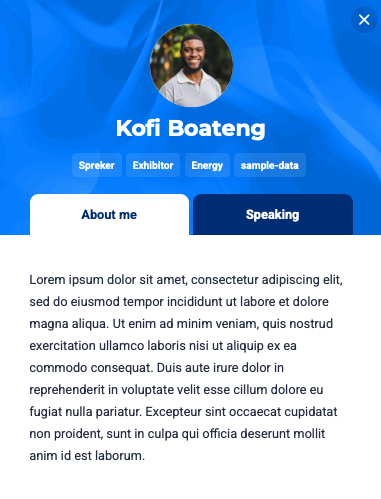
When a speaker card is clicked, a profile pop-up opens showing the speaker’s biography and the sessions they are speaking in.

Profile showing short bio and links to featured talks.
Impressum URL

Purpose: Add a link to an external impressum to the pre-event page footer

Input: Text (URL)

Default value: Empty

Behaviour: Adds an Impressum link to the footer of the pre-event page. Alternatively, this can be used as a place to link to an external privacy policy document.

Select the content for the pre-event page

Purpose: Select the content from the list of pages to act as the main information text on the pre-event page.

Input: Single-select (pages)

Default value: Placeholder texts are used

Behaviour: Two columns of text are added to the pre-event page using the content of selected pages. When removed, the section is hidden. Options for left and right columns.

Pre-event video

Purpose: Feature a video on the pre-event page.

Input: Text (URL)

Default value: Empty

Behaviour: When a valid video URL is provided, the video is embedded and displayed at the top of the pre-event page.

Add a tracking pixel

Purpose: Embed a tracking pixel to measure completed registrations for your event.

Input: Text (Tracking Script)

Default value: Empty

Behaviour: When a tracking pixel is provided, it is rendered on the registration completion page after a user successfully submits the registration form.

The pixel fires once per completed registration, allowing registration conversions to be tracked.

Enable sticky header

Purpose: Display a persistent header on the pre-event page to provide continuous access to navigation and primary actions.

Input: Boolean (True/False)

Default value: True

Behaviour: When enabled, a sticky header remains visible as users scroll the pre-event page.

The header provides quick access to navigation items and primary actions, including buttons linking directly to registration forms or ticket ordering pages.

Last updated

Was this helpful?