# Leasing Hardware

Getting Started

{% hint style="warning" %}
The Surface Pro & iPhone are delivered locked. For security reasons we cannot share the code upfront. Ask your Delivery Consultant for the code upon receiving the hardware package.
{% endhint %}

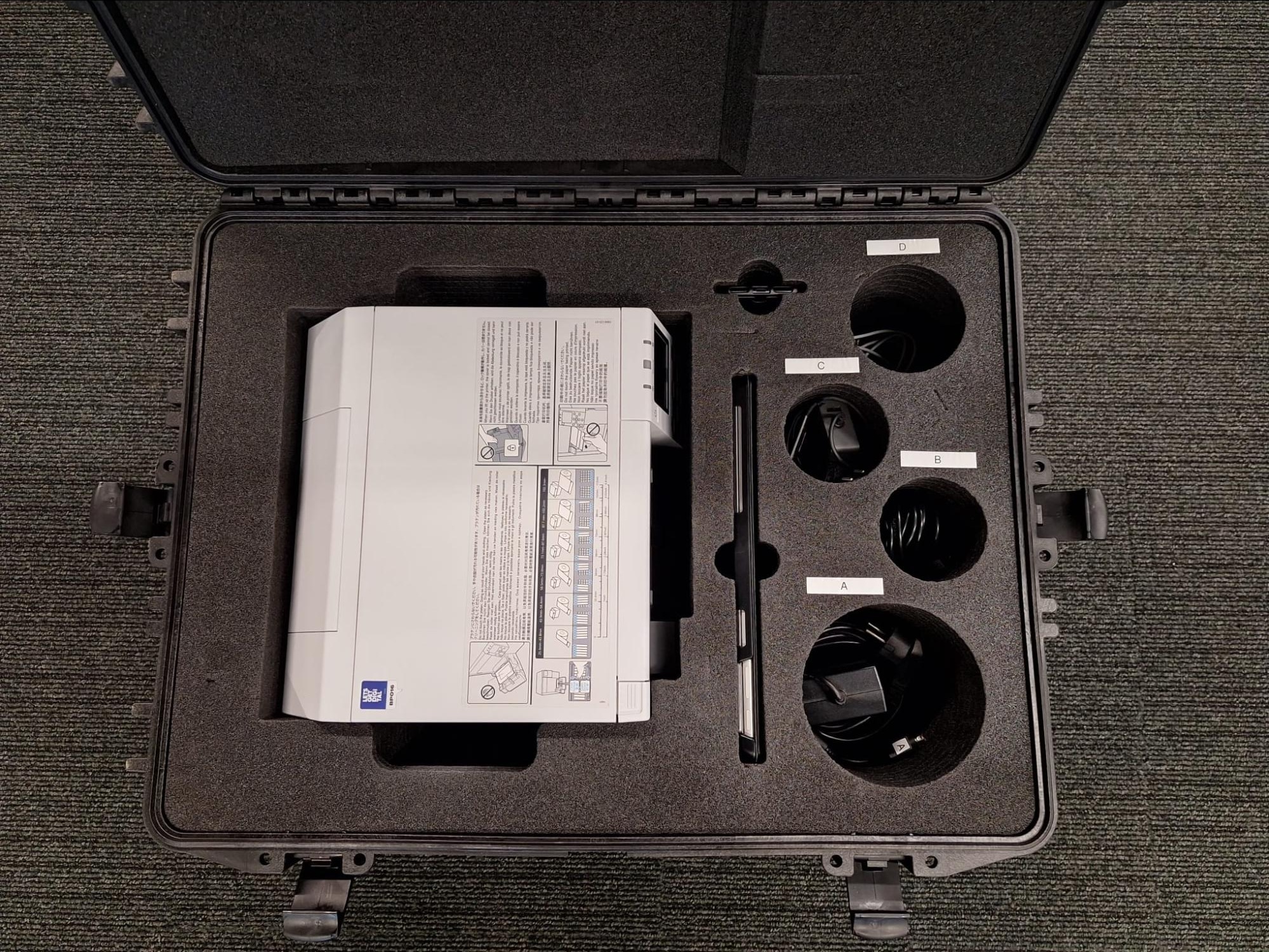
<div data-with-frame="true"><figure><img src="/files/7M1GCTwCMDphxBzB6bQx" alt="" width="563"><figcaption><p>Peli™ Case containing labelled Badge Printing hardware</p></figcaption></figure></div>

#### **Badge Printing Case**

When opening a badge printing case, it will appear as shown above. Each case contains one of the following items:

* Epson ColorWorks C4000e printer
* Microsoft Surface Pro
* Apple iPhone SE
* Printer Power Supply (A)
* USB-C to USB-B cable (B)
* Microsoft Surface Power Supply (C)
* USB-C to Lightning Cable (D)

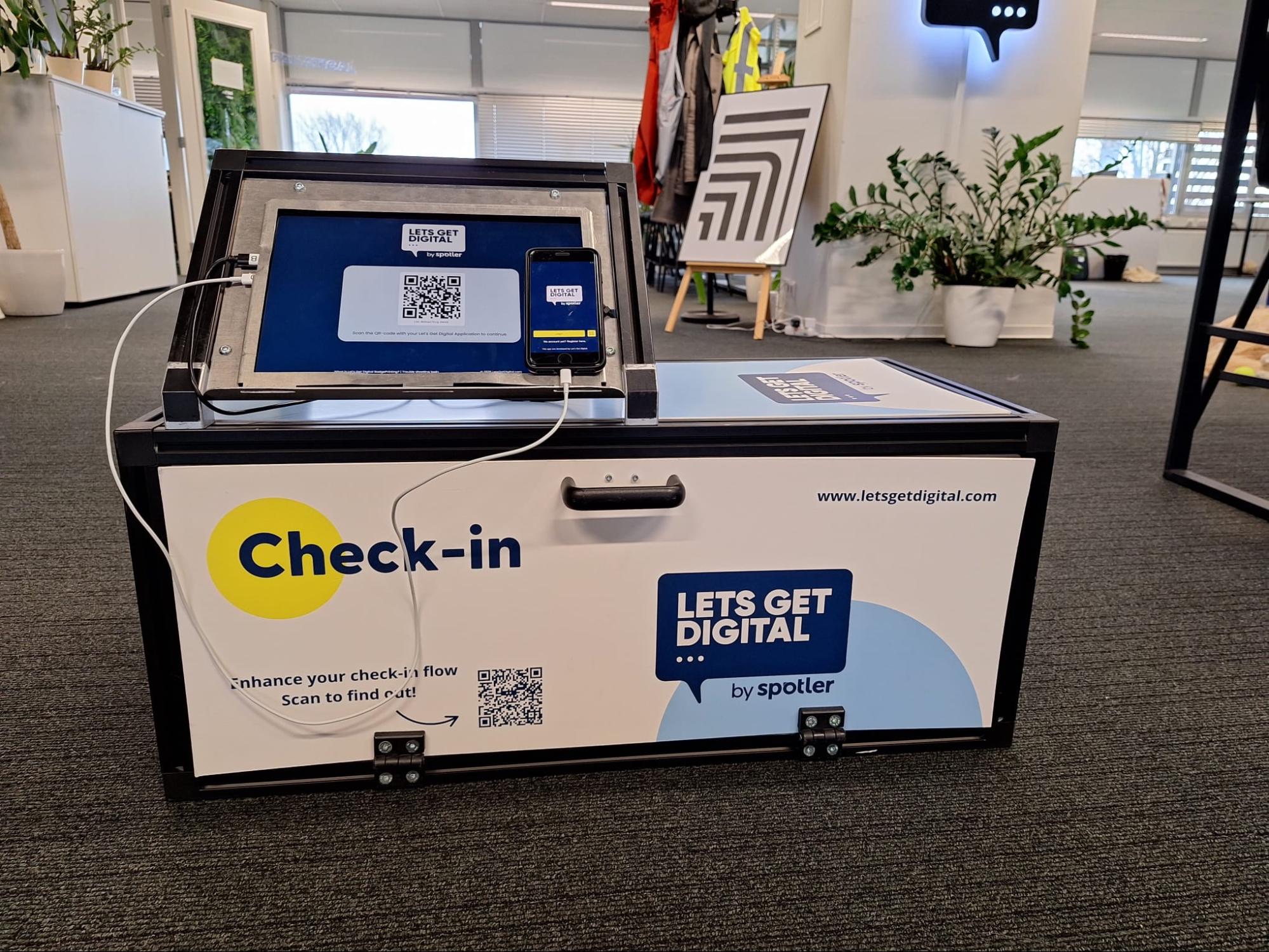
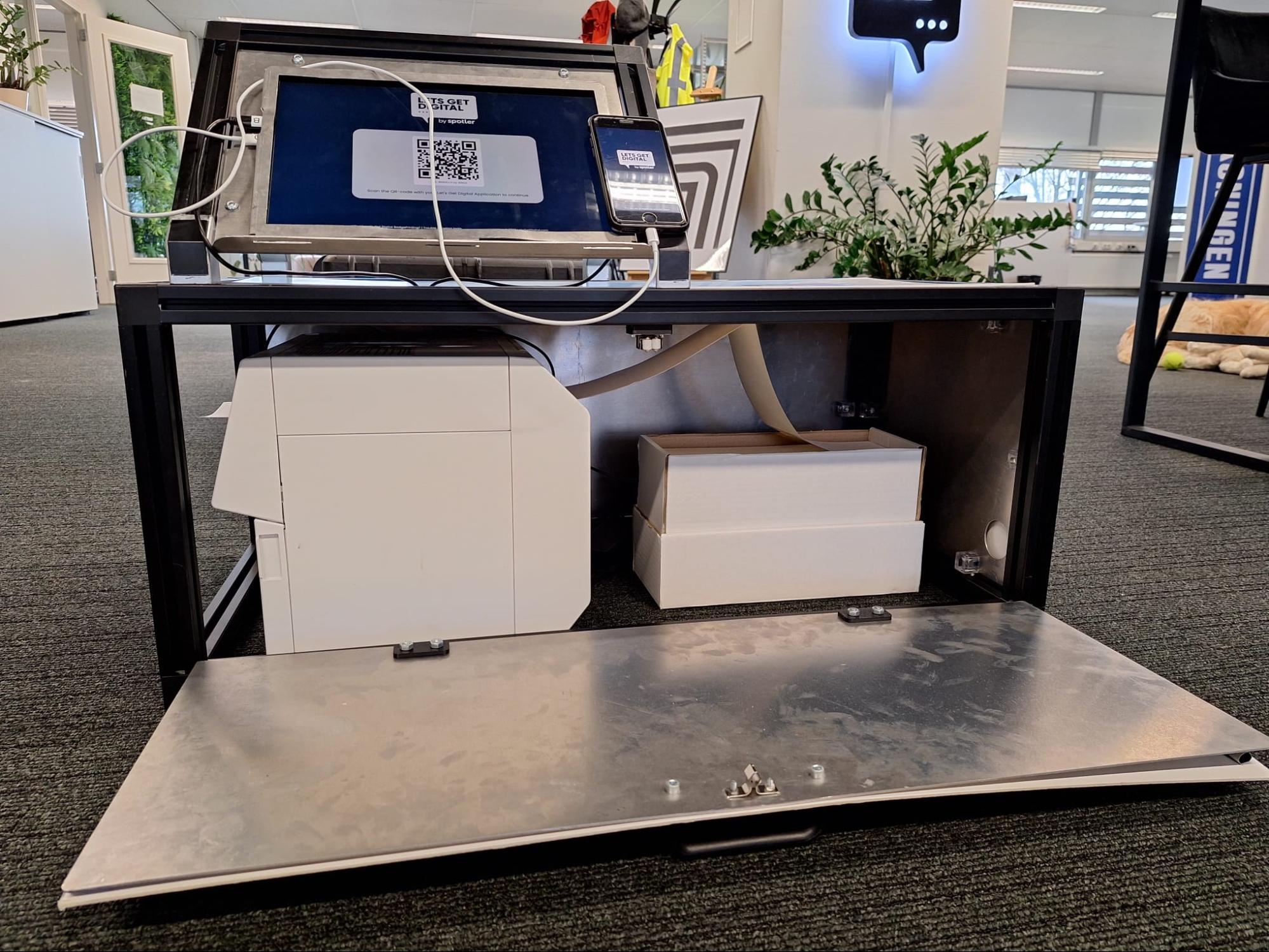
Additionally you will receive your branded printer housing along with either sticker or paper badges, depending on your requirements.

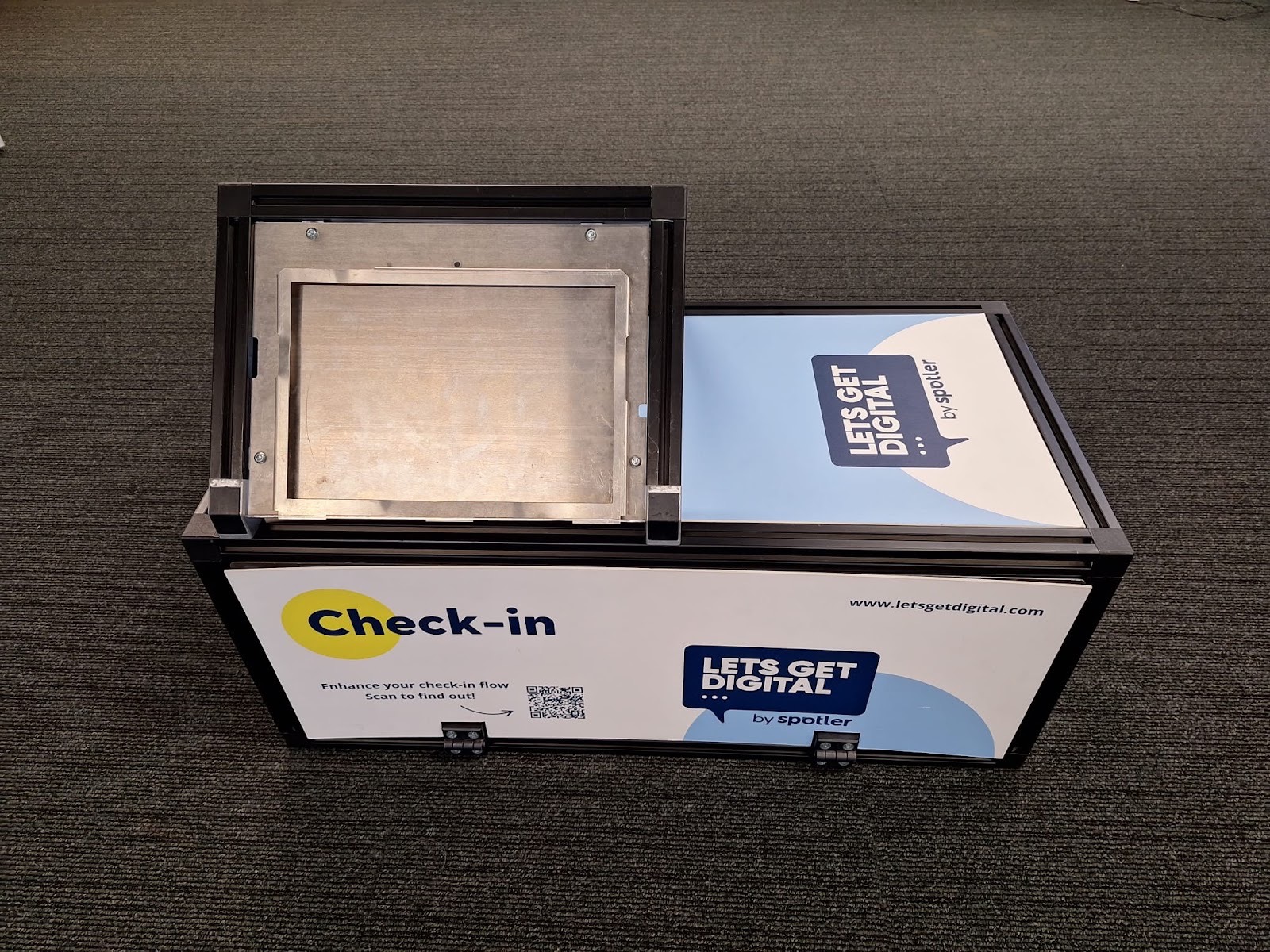
<div data-with-frame="true"><figure><img src="/files/95PvDZ3bvAQhwmIyi5FU" alt="" width="563"><figcaption><p>Branded Printer housing complete with customisable panels and tablet enclosure</p></figcaption></figure></div>

### Printer setup

{% stepper %}
{% step %}

### Connect the printer

#### **Connect printer**

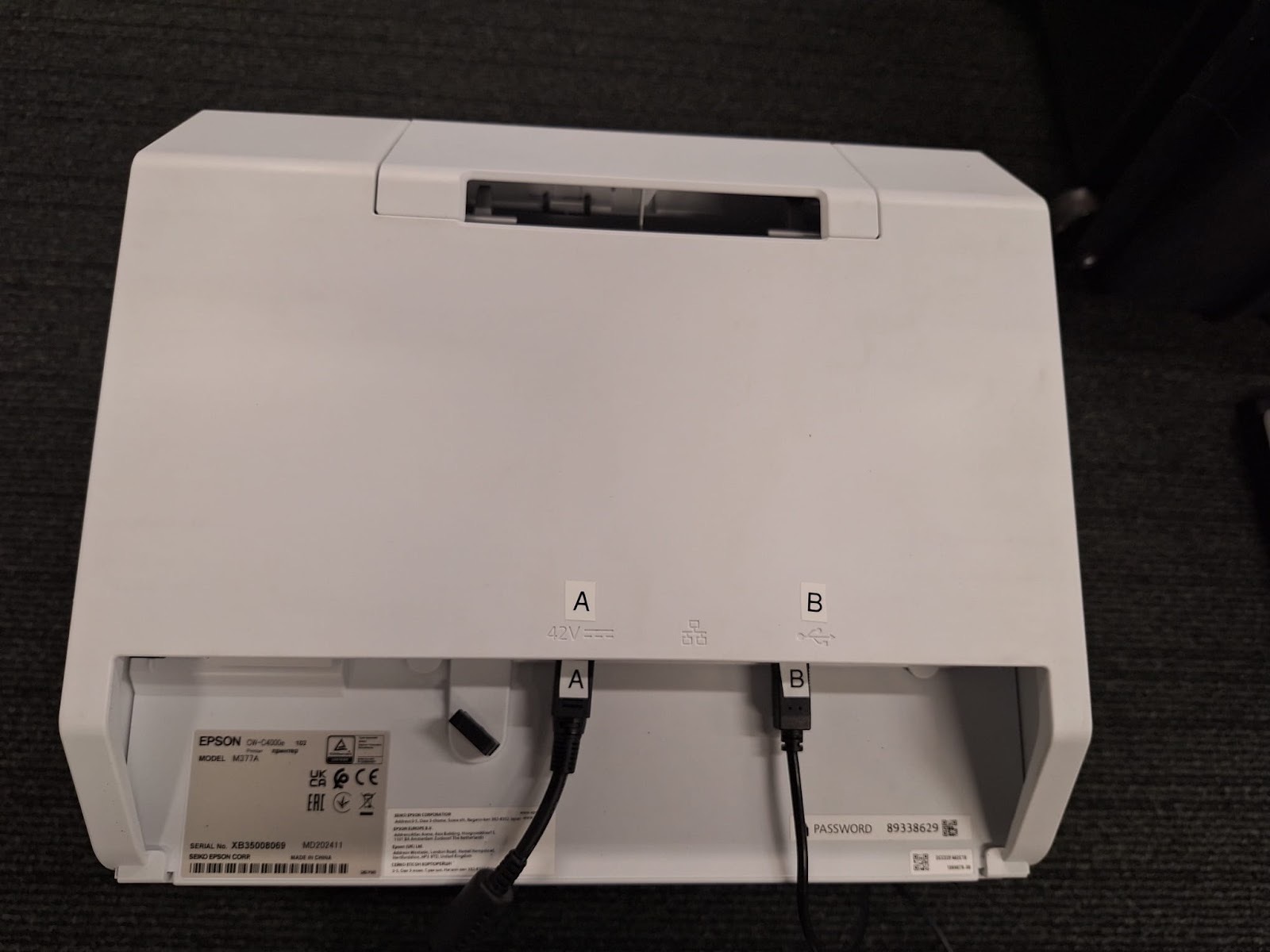
1. Carefully place the printer face-down to access the rear cable compartment.
2. Insert the Printer Power Supply (A) into the 42V port.
3. Insert the USB-B end of cable (B) into the square USB port.
4. Flip the printer upright again.

<div data-with-frame="true"><figure><img src="/files/EF4nV5W9M9J0vwoNF96l" alt="" width="563"><figcaption><p>Rear-side view of Epson ColorWorks C4000e printer</p></figcaption></figure></div>

{% endstep %}

{% step %}

### **Load badges**

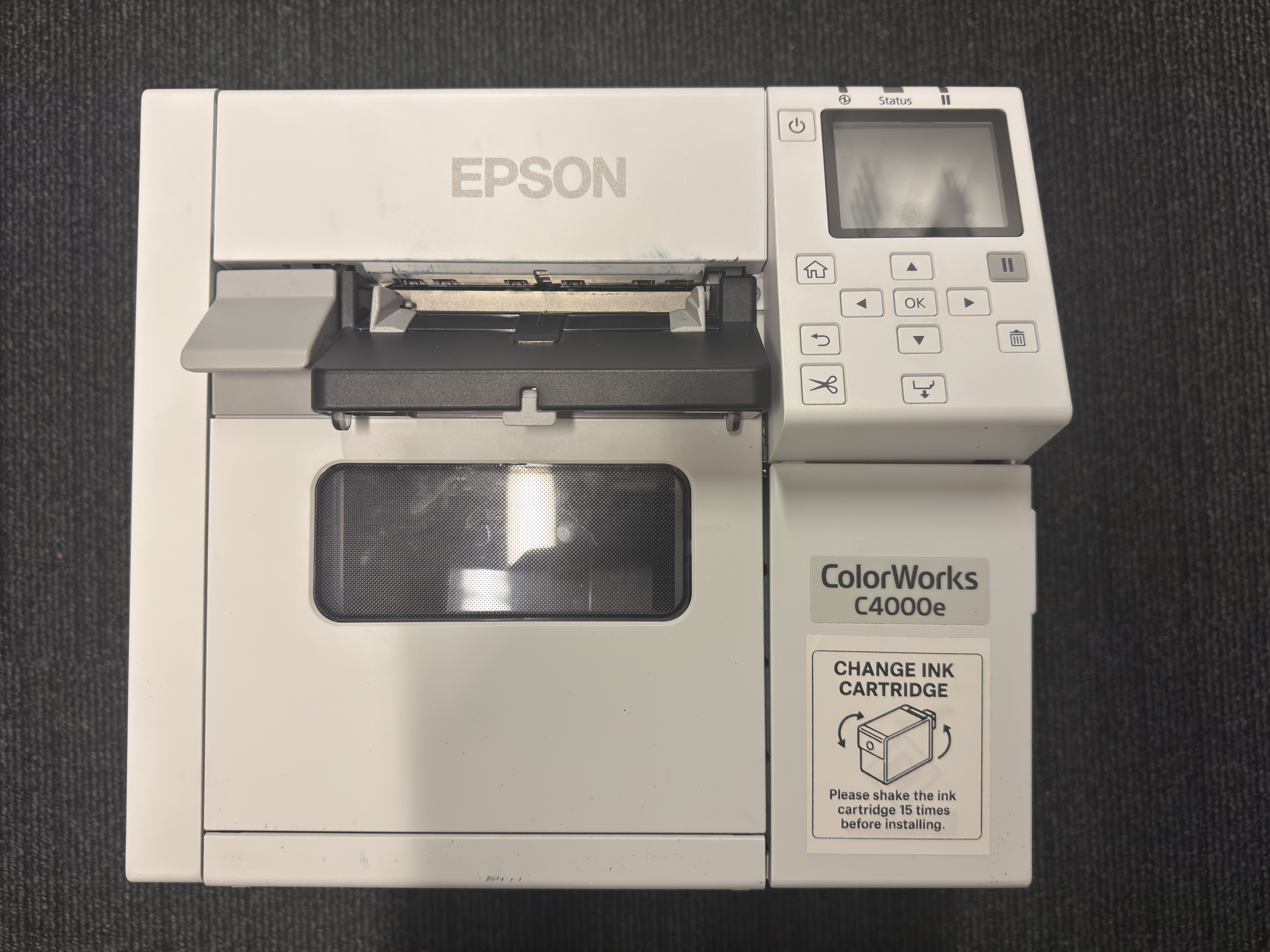
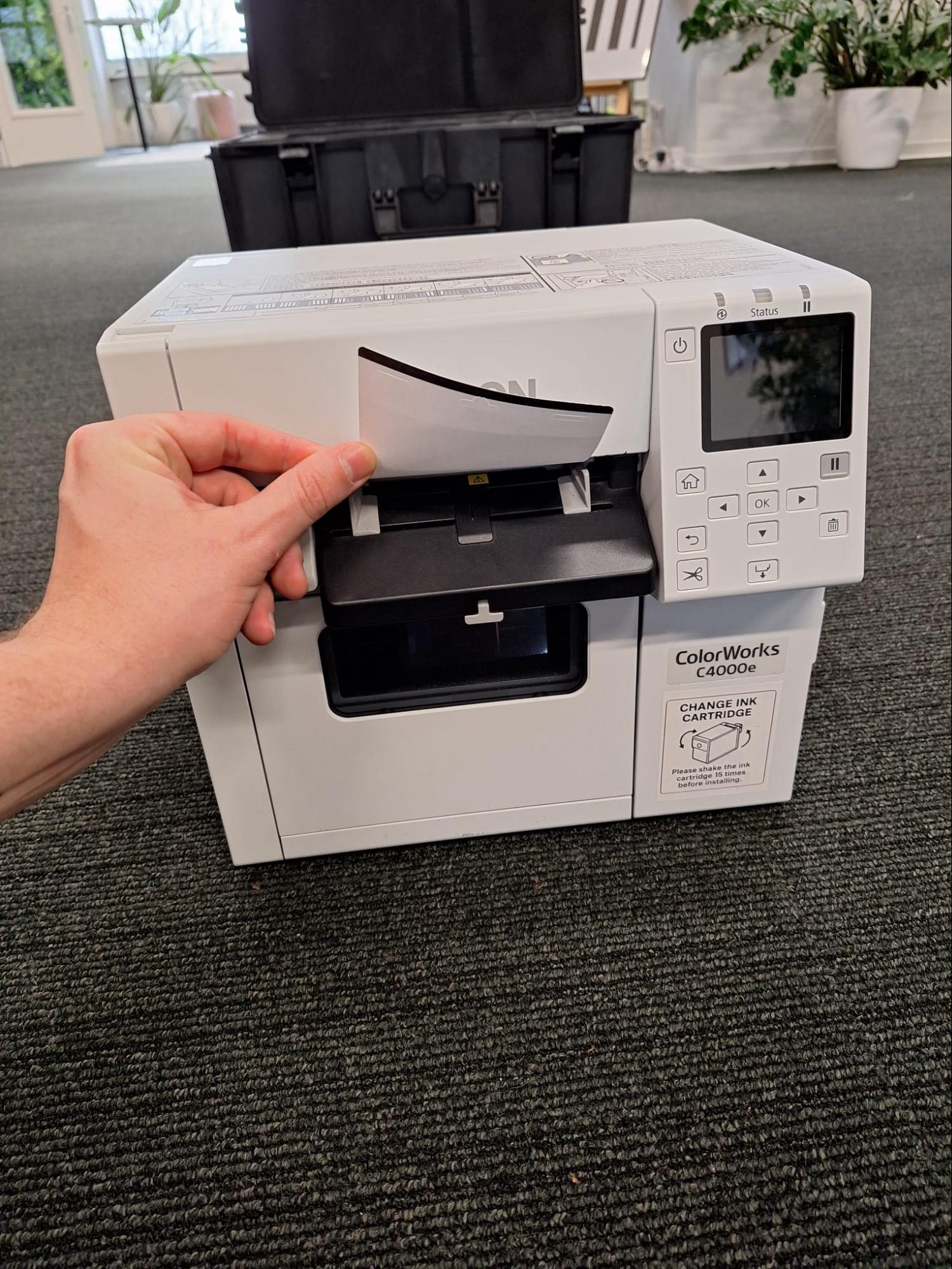
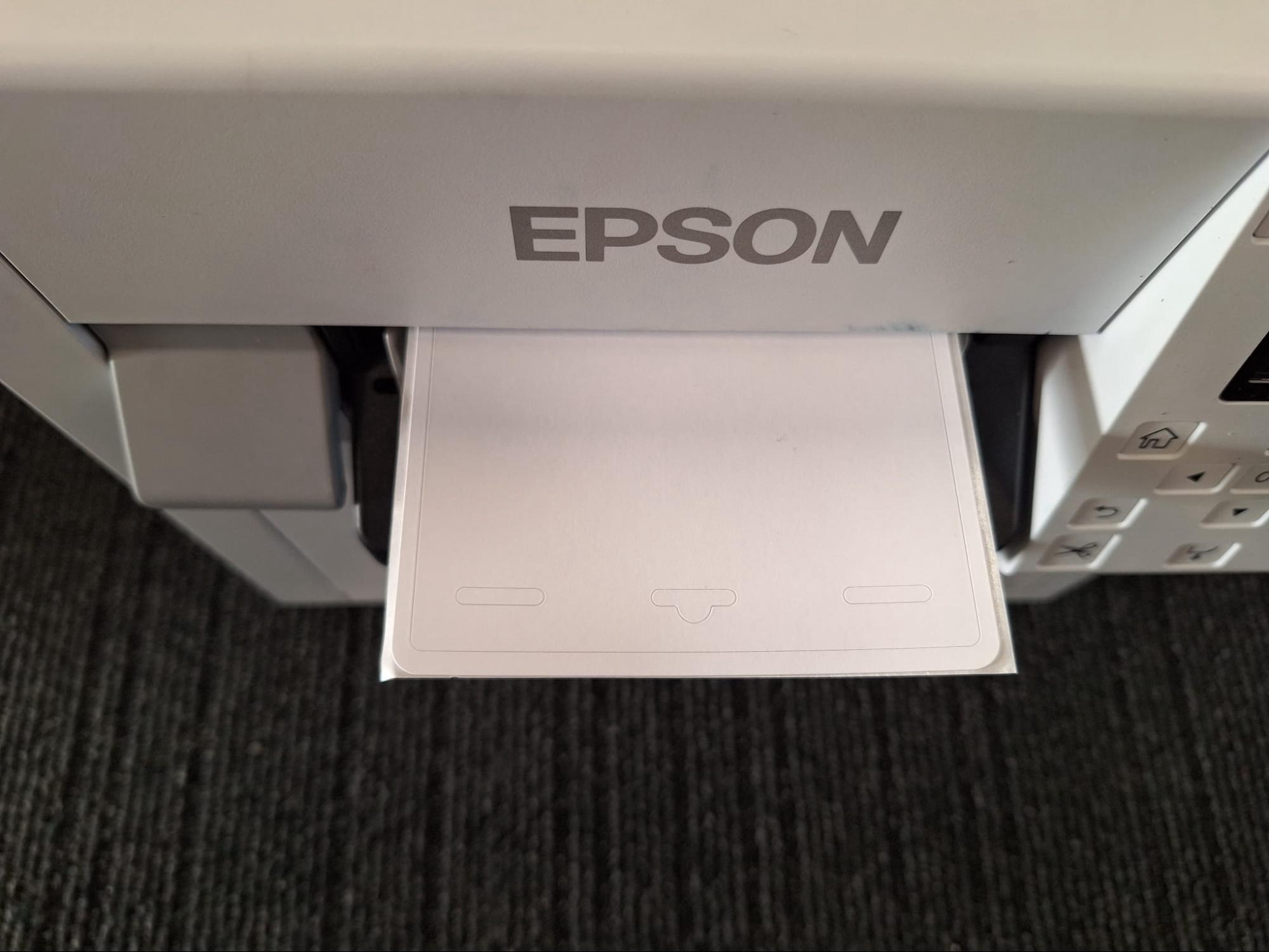
1. Pull the dark grey lid on the front cover slightly towards you.
2. Insert the badges into the rear slit.
3. Check the badge line:
   * T180 or T180S badges (with black bar): black bar facing down and towards the printer front.
   * 260T or 260TS badges (sticker-type): sticker side up (rough surface and lanyard cutouts visible).
   * If the badge is neither T180, T180S, 260T nor 260TS → call Smart2B at +31 (0)318 590 212.

<div data-with-frame="true"><figure><img src="/files/sUzoA0Jwg9LEFbpacCCw" alt="" width="563"><figcaption><p>Front side of Epson ColorWorks C4000e printer. The grey lever on the left side opens the front cover.</p></figcaption></figure></div>

#### Badge line reference images

<details>

<summary>T180 Badge</summary>

<div data-with-frame="true"><figure><img src="/files/46wwDfMBAg4krKgff4BT" alt="" width="563"><figcaption><p>Correct orientation: black bar facing down</p></figcaption></figure></div>

</details>

<details>

<summary>260T Badge</summary>

<div data-with-frame="true"><figure><img src="/files/7MN4WQ8HMFJ67hnliBUZ" alt="" width="563"><figcaption><p>Correct orientation: sticker-side up (rough surface and lanyard cutouts visible)</p></figcaption></figure></div>

</details>
{% endstep %}

{% step %}

### Place cover over printer

Place the branded printer cover over the printer and badges.
{% endstep %}

{% step %}

### Set up Surface Pro tablet

#### Mount Surface Pro

* Place the tablet on the triangle holder on top of the printer cover.
* Insert the USB-C end of cable (**B**) into the tablet slot marked **B** (through the top opening).
* Insert the rounded magnetic connector of cable (**C**).
* Ensure the white light on the connector is on.
* Insert cable (**D**): USB-C end into the tablet, Lightning end into the iPhone.

<div data-with-frame="true"><figure><img src="/files/P4bwQXgICdXeb6I2ZI4f" alt=""><figcaption><p>Surface Pro correctly connected to printer and supplied iPhone used for ticket scanning</p></figcaption></figure></div>
{% endstep %}

{% step %}

### Power everything on

* Connect printer and Surface Pro to mains power.
* Power on the printer,  Surface Pro, and iPhone (hold the power buttons for \~5–10 seconds).

<div><figure><img src="/files/YJtMSvylXfH88aGnz61z" alt=""><figcaption><p>Complete hardware package</p></figcaption></figure> <figure><img src="/files/bQBOpypbCeua38aGbbLT" alt=""><figcaption><p>Side door open keeps badges and printer always in reach </p></figcaption></figure></div>

{% endstep %}

{% step %}

### Log into Badge Printing software

#### **Open the software**

* Connect both the tablet and the iPhone to the internet
* On the Surface: open “LGD Badge Printing”.
* On the iPhone: open “Let’s Get Digital”.

#### **Log in**

* On the iPhone:
* Tap the QR icon.
* Scan your personal QR code from the Admin Panel or email.
* In the app: go to Menu → Organiser Tools → Connect Badge Printer.
* Scan the QR code shown on the Microsoft Surface to pair the devices.
  {% endstep %}
  {% endstepper %}

### Shipping info

{% hint style="info" %}

#### Note to organisers

Always confirm final shipment details in advance if hardware is forwarded or transported internationally.

For logistics questions or confirmation of shipment specifications, please contact Smart2B.
{% endhint %}

All hardware lease packages are comprised of the same set of equipment, but are packaged differently depending on your particular needs.&#x20;

The inventory of goods for the hardware packages is as follows:

{% columns %}
{% column %}

#### **Flight case**

* Printer&#x20;
* Microsoft Surface Pro tablet
* iPhone SE&#x20;
* Cables&#x20;
  {% endcolumn %}

{% column %}

#### Frame

* Printer cover
* Tablet holder
  {% endcolumn %}
  {% endcolumns %}

#### Packaging Dimensions

<details>

<summary>Standard Shipment (packed by Smart2B)</summary>

When shipped by Smart2B, the hardware lease package is delivered in **two separate boxes**.

#### **Flight case**

| Dimension | Measurement |
| --------- | ----------- |
| Width     | 55 cm       |
| Height    | 40 cm       |
| Depth     | 70 cm       |
| Weight    | 29.5 kg     |

#### Frame (includes tablet holder)

| Dimension | Measurement |
| --------- | ----------- |
| Width     | 60 cm       |
| Height    | 50 cm       |
| Depth     | 84 cm       |
| Weight    | 17.1 kg     |

{% hint style="info" %}
**Note:** When shipped by Smart2B, the flight case is always delivered boxed.
{% endhint %}

</details>

<details>

<summary>Unboxed variants (for storage or onward transport)</summary>

{% hint style="info" %}

#### Note to organisers

This information is intended for customers arranging their own onward transport (for example, air freight or local couriers).
{% endhint %}

The dimensions below apply when the hardware is stored, transferred, or forwarded after delivery, without the outer cardboard box.

#### **Flight case**

| Dimension | Measurement |
| --------- | ----------- |
| Width     | 52 cm       |
| Height    | 38 cm       |
| Depth     | 67 cm       |
| Weight    | 26.9 kg     |

#### **Frame (includes tablet holder)**

| Dimension | Measurement |
| --------- | ----------- |
| Width     | 44 cm       |
| Height    | 34 cm       |
| Depth     | 81 cm       |
| Weight    | 11.4 kg     |

</details>

#### Flight case transport

For storage, transfer, or onward transport, the flight case itself does **not require an additional protective cover**.\
When shipped by Smart2B, the flight case is always delivered boxed.


---

# Agent Instructions: Querying This Documentation

If you need additional information that is not directly available in this page, you can query the documentation dynamically by asking a question.

Perform an HTTP GET request on the current page URL with the `ask` query parameter:

```
GET https://knowledge-base.letsgetdigital.com/badge-printing/leasing-hardware.md?ask=<question>
```

The question should be specific, self-contained, and written in natural language.
The response will contain a direct answer to the question and relevant excerpts and sources from the documentation.

Use this mechanism when the answer is not explicitly present in the current page, you need clarification or additional context, or you want to retrieve related documentation sections.