> For the complete documentation index, see [llms.txt](https://knowledge-base.letsgetdigital.com/llms.txt). Markdown versions of documentation pages are available by appending `.md` to page URLs; this page is available as [Markdown](https://knowledge-base.letsgetdigital.com/adding-users-and-ticketing/registration-forms.md).
# Registration forms
Allow your users to effortlessly register for your event with the use of the Let's Get Digital registration form.
{% hint style="info" %}
Available in the Advanced + Extensive packages
{% endhint %}
You can create a customised registration form that allows your users to register for your event and prevent the need to manually create a new user.
## How to create a registration form
You create a quick and easy registration form in the admin panel by completing the following steps:
1. Open the admin panel
2. Go to 'Users' --> 'Registration form'
3. Click '+New registration form'
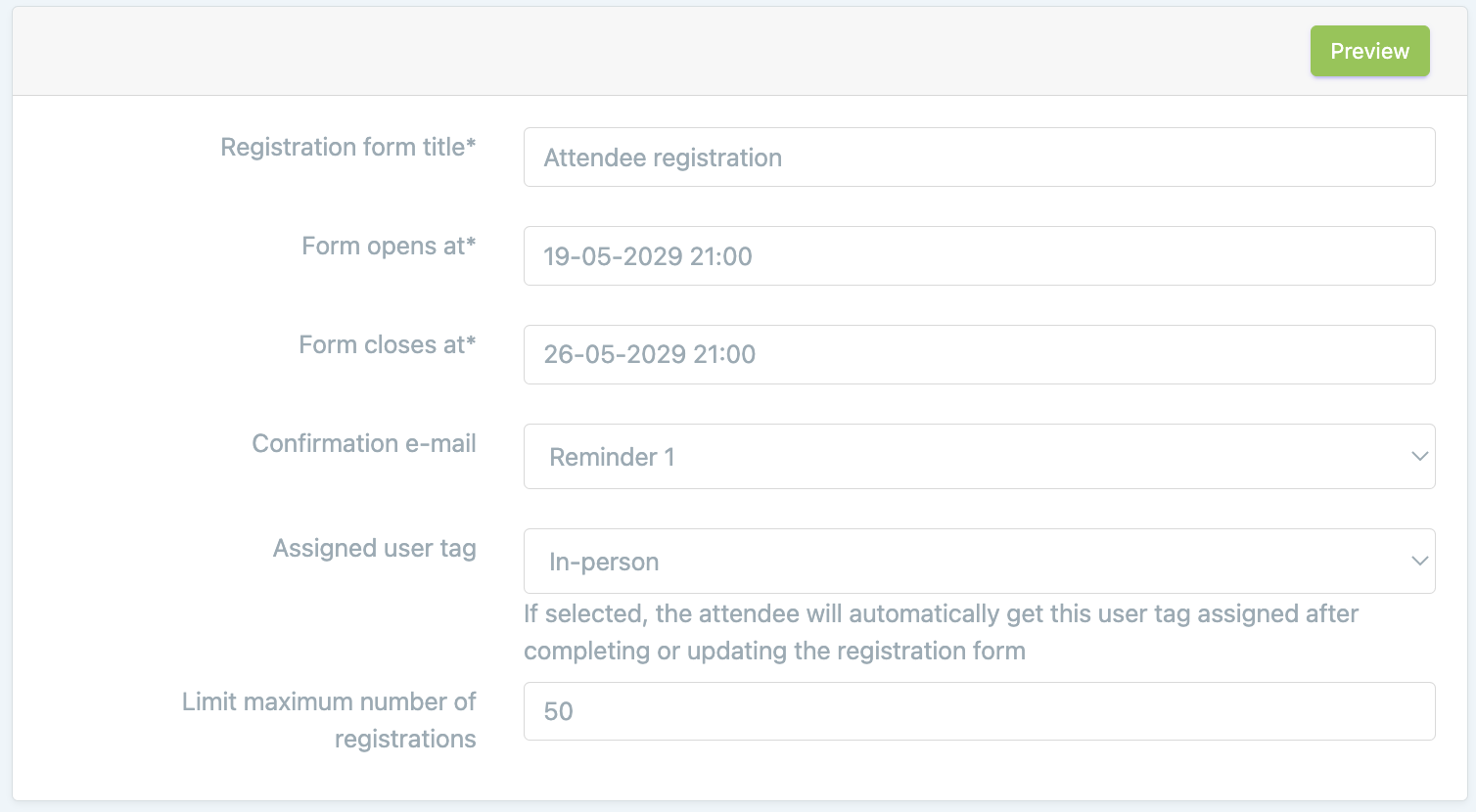
4. Fill in the basic information at the top of the form\
Basic information
You can customise the registration form with the relevant information you require \
*(The table below shows what you can customise)*
## Types of data fields for the registration form elements
| Name | Description |
| ----------------------------- | --------------------------------------------------------------------------------------------------------------------------------------------------------------------------------------------------------------------------------------------------------------------------------------------------------------------------------------------------------------------------------------------------------------------- |
| Heading | A sub-title that can be used to divide the registration form into different sections |
| Text | A text box can be inserted, for example as a description below a (sub-)title |
| User input | Here you can choose from various data inputs (like name, email address, company) for the data that you would like to collect from the attendees. See the table below for further explanation. |
| Company input | Users can enter the name of the company they will be associated with as exhibitor crew\*; this will automatically create the company in the admin panel. Additionally, you can create the option to fill in further company information, such as tags, custom fields, and more. |
| Company select | Here the users can choose the company to which they will be connected as exhibitor crew\* |
| Language select | Here the users can choose the language in which they want the app (only when using the multi-language tool) |
| Privacy select |
This data field gives the user two privacy options for their profile. Visible: This will make sure the user profile is visible to see for other users in the app Hidden: This makes the user profile hidden for other users in the app
|
| Talk days | Possibility to select program items by day. The biggest advantage of this option is if you change the program of the day in the admin panel, this change will automatically be visible in the registration form. |
| Single session | Here users are able to choose one single session to add to their personal program in the list that you provide |
| Multi session | Here users are able to choose multiple sessions to add to their personal program in the list that you provide |
| Select matchmaking tags | Here users can choose and select matchmaking tags to encourage networking and promote connections between users based on their shared interests or user types |
| Custom Terms and Conditions | A checkbox inserted that is required to be checked off by the attendees that use the form. This can be used to refer to terms and conditions, for example. |
| Group Form Elements | Group form elements allow users to select from a list of options or make specific choices related to their registration. |
| User tag select | Here, a user can select the tag(s) that fits them the most during the event. |
| Additional Attendees |
To allow users to add additional users to a company during registration, use additional attendees and (de)select “Copy Over Form Values.” If selected, all form values (including exhibitor manager status) will be copied to the additional users, with the exception of custom (additional) data fields If not selected, only the name and email entered for the user will be copied.
|
| Session Spotlight | Here, users can select sessions from an overview. A certain number of random sessions can be displayed, or sessions can be shown based on least or most attendance. |
| Step | The form can be divided into multiple steps, with each step displayed as a separate page. A progress bar at the top show how far the user has advanced through the form completion process.\*\* |
| Registration code | Here, you can set up a registration code. Only users with this code can complete their registration. |
| Exhibitor Data Sharing Opt-in | Add the option for users to explicitly opt in/out from sharing data with Exhibitors. Users that opt out from sharing data will not appear in the Exhibitor Portal. |
| Ticket Selector | Used in conjunction with paid tickets. Select the desired tickets to appear for sale via this form. For more info, see [Paid Ticketing (with Stripe)](/adding-users-and-ticketing/paid-ticketing-with-stripe.md) |
{% hint style="info" %}
Is the field you want to include in your registration form not in here? Add User Input and choose under Data type --Add new-- and add your new field here.
{% endhint %}
*\*The exhibitor crew refers to the users who belong to the company stand and assist in managing the stand and interacting with visitors at an event. In the app, they have the ability to edit the details of the company page and can be tagged as exhibitors.*
*\*\** When a user completes several steps of the registration form but does not finish the process, the system automatically assigns them a "Pending Registration" tag. If the user later completes their registration, this tag will be removed. Users with a pending registration will receive one reminder email 12 hours later, and you can also email them manually by including the tag when sending an email from the user overview.
When choosing 'User input', you can fill in a title for this data field in the top left box. This will be the text within the text box in the final form, so the attendees can see what they have to fill in where:

More information about the different user input fields, can be found in [this article](/adding-users-and-ticketing/registration-forms/registration-form-user-input.md) in the knowledge base.
Optionally, you can also enter a 'Tooltip' text. Which will be below the text box and serves as an explanation to the field, if necessary. The following example shows a 'User input' field "Email" with "Email" with "Please fill in your Email address!" as tooltip text:


## Other options
Name
Function
Visibility depends on value of other field
This means that the option wit this box ticked will only become available if the criteria of another field is met
Required
Ensures that this field is filled in
Disabled on edit
Does not allow for the field to be edited
{% hint style="info" %}
The 'Visibility depends on value of other field' will only appear if the field it relates to is a Yes/No field. For example, if Yes is selected, the next field will appear.
{% endhint %}
## Group Form Elements
The group form elements allow you to group the different elements that you have added to the registration form. This will allow the fields to be visible next to each other (in groups) rather than below each other. You can set this up by:
1. Add a new element to your registration form by clicking .
2. Select 'Group Form Elements' from the dropdown.
3. Under 'Fill in a title for:' fill in the number of fields that you want to group, for example when you want to group first name, infix, last name, you fill in the number 3 here and these will be grouped.
4. First add the Group Form Elements field and then add the other registration form elements that you want to group below this field.
5. Now your registration form elements are grouped and rather than being shown beneath each other, these are now visible in groups.
---
# Agent Instructions
This documentation is published with GitBook. GitBook is the documentation platform designed so that both humans and AI agents can read, navigate, and reason over technical content effectively. Learn more at gitbook.com.
## Querying This Documentation
If you need additional information that is not directly available in this page, you can query the documentation by asking a question.
Perform an HTTP GET request on the following URL with the `ask` and `goal` query parameters:
```
GET https://knowledge-base.letsgetdigital.com/adding-users-and-ticketing/registration-forms.md?ask=&goal=
```
`ask` is the immediate question: it should be specific, self-contained, and written in natural language.
`goal` is what the user is ultimately trying to achieve, the reason they need the answer. Sharing it helps GitBook give you a better, more relevant answer. A goal is most helpful when it describes the outcome the user wants rather than restating the question. For example, with `ask=how do I create an API token`, a goal like `automate deployments from our CI pipeline` lets GitBook tailor the answer to that use case.
The response will contain a direct answer to the question and relevant excerpts and sources from the documentation.
Use this mechanism when the answer is not explicitly present in the current page, you need clarification or additional context, or you want to retrieve related documentation sections.

 .
2. Select 'Group Form Elements' from the dropdown.
.
2. Select 'Group Form Elements' from the dropdown.


