> For the complete documentation index, see [llms.txt](https://knowledge-base.letsgetdigital.com/llms.txt). Markdown versions of documentation pages are available by appending `.md` to page URLs; this page is available as [Markdown](https://knowledge-base.letsgetdigital.com/badge-printing/badge-settings.md).
# Badge settings
This article explains how to set up the badge printing for your event.
{% hint style="info" %}
When you make use of a [custom badge design](/badge-printing/custom-badge.md), you only have to select the correct badge type and set up the tags.
{% endhint %}
## Where to find the badge printing settings
1. Hover over settings and click on 'General settings'.
2. Select 'Badge printing' from the left-side handed menu. (if not visible, contact your event consultant to enable the badge printing module)
### Badge printing
| Setting | Description |
| ------------------------------------------------------------------------------------------ | ------------------------------------------------------------------------------------------------------------------------- |
| Get your badge | Click here to see a preview of your own badge. |
| Badge Type | Select the correct badge type here. (your custom badge will become visible here once it has been added by our developers) |
| Do you want the badge to be generated before, so you don't have to generate it on the fly? | When enabled, last minute changes will not be visible immediately. |
| Organisation logo | The image that will be visible on the badge. |
| Primary color | The colour of the top bar, first name, company name, company role and QR-code on the badge. |
| Secondary color | The colour of the last name on the badge. |
| Show powered by Let's Get Digital on the badge? | When enabled, powered by Let's Get Digital will be shown on the badge. |
| Show the user qr code on the badge | When this is disabled, a second logo can be added to replace the QR-code on the badge. |
{% hint style="info" %}
Showing the QR code on the badge makes it easier for attendees to make connections and it is easier to check out your attendees.
{% endhint %}
### User tags
| Setting | Description |
| ---------------------------- | ----------------------------------------------------------------------------------------------- |
| Default Title | This title will be put on the badge if the user does not have any tags linked to their profile. |
| Default tag title color | The color of the text that is shown on the badge. |
| Default tag background color | The color of the background of the tag that is shown on the badge. |
#### How to set up your tags
1. Go to 'Tags' under the badge printing settings.
2. Add the tags that you want to show on the badge.
3. Fill in how you want the tag to be visible on the badge by filling in the name, background colour, and text colour of the tag.
4. It is possible to set up as many tags as you need. Please note that if a user has multiple tags linked to their profile, the tag listed highest in your setup will appear on their badge. For example, if a user has both the "Speaker" and "Exhibitor" tags, but "Exhibitor" is ranked higher in the list, then "Exhibitor" will be displayed on their badge.
{% hint style="warning" %}
**Please note:** If user tags (with respective colours) are not set in the badge printing settings, the tags and colours are fetched from the user [tag overview](https://knowledge-base.letsgetdigital.com/the-admin-panel/users/user-tags/creating-user-tags).
{% endhint %}
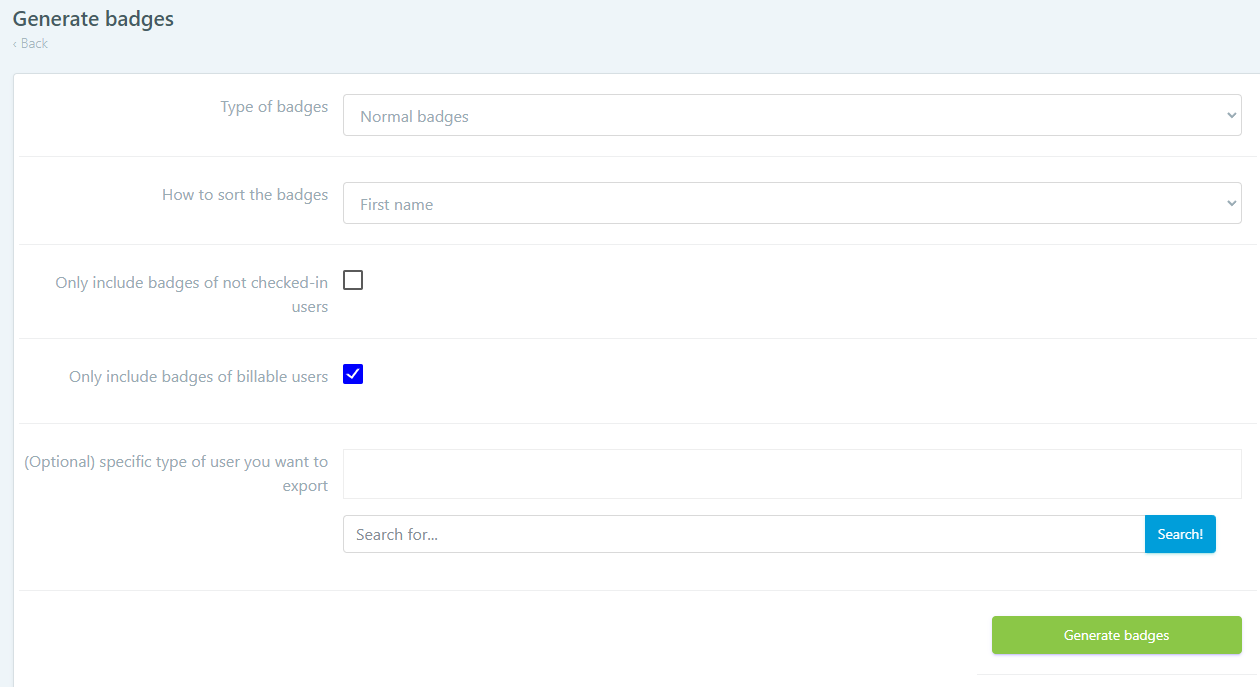
### Generate badges for all users
To generate the badges for all registered users in the admin panel, follow these steps:
* Go to **admin panel > users > all users**
* Then, click *actions* and select the option *user badges.*
* Then, select the option *generate new badges*
* Select your preferences and click *generate badges*
---
# Agent Instructions
This documentation is published with GitBook. GitBook is the documentation platform designed so that both humans and AI agents can read, navigate, and reason over technical content effectively. Learn more at gitbook.com.
## Querying This Documentation
If you need additional information that is not directly available in this page, you can query the documentation by asking a question.
Perform an HTTP GET request on the following URL with the `ask` and `goal` query parameters:
```
GET https://knowledge-base.letsgetdigital.com/badge-printing/badge-settings.md?ask=&goal=
```
`ask` is the immediate question: it should be specific, self-contained, and written in natural language.
`goal` is what the user is ultimately trying to achieve, the reason they need the answer. Sharing it helps GitBook give you a better, more relevant answer. A goal is most helpful when it describes the outcome the user wants rather than restating the question. For example, with `ask=how do I create an API token`, a goal like `automate deployments from our CI pipeline` lets GitBook tailor the answer to that use case.
The response will contain a direct answer to the question and relevant excerpts and sources from the documentation.
Use this mechanism when the answer is not explicitly present in the current page, you need clarification or additional context, or you want to retrieve related documentation sections.