> For the complete documentation index, see [llms.txt](https://knowledge-base.letsgetdigital.com/llms.txt). Markdown versions of documentation pages are available by appending `.md` to page URLs; this page is available as [Markdown](https://knowledge-base.letsgetdigital.com/the-admin-panel/settings/general-settings-app-+-vp-1/registration-and-pre-event-page-settings/lets-get-digital-iframes.md).
# Let's Get Digital iframes
### 1. Introduction
Let's Get Digital provides several iFrame integrations that allow event data to be displayed on an external website.
Each iFrame loads live data directly from the event. Changes made in Let's Get Digital are automatically reflected in the embedded iFrame.
This article describes:
* How to obtain and embed an iFrame
* Which iFrames are available
* What data each iFrame displays
* Any package or configuration requirements
***
### 2. How to Embed an iFrame
#### Step 1 – Locate the iFrame in Let's Get Digital
The exact location of these iFrames will be specified per iframe further on in the article
***
#### Step 2 – Copy the iFrame Code
Example:
```html
```
Copy this snippet and paste it into the HTML of your website where the content should appear.
***
#### Step 3 – Adjust Dimensions (if needed)
You may adjust:
* `width` (typically `100%`)
* `height` (depends on content length)
***
### 3. Available iFrames
Below is an overview of available iFrame integrations.
***
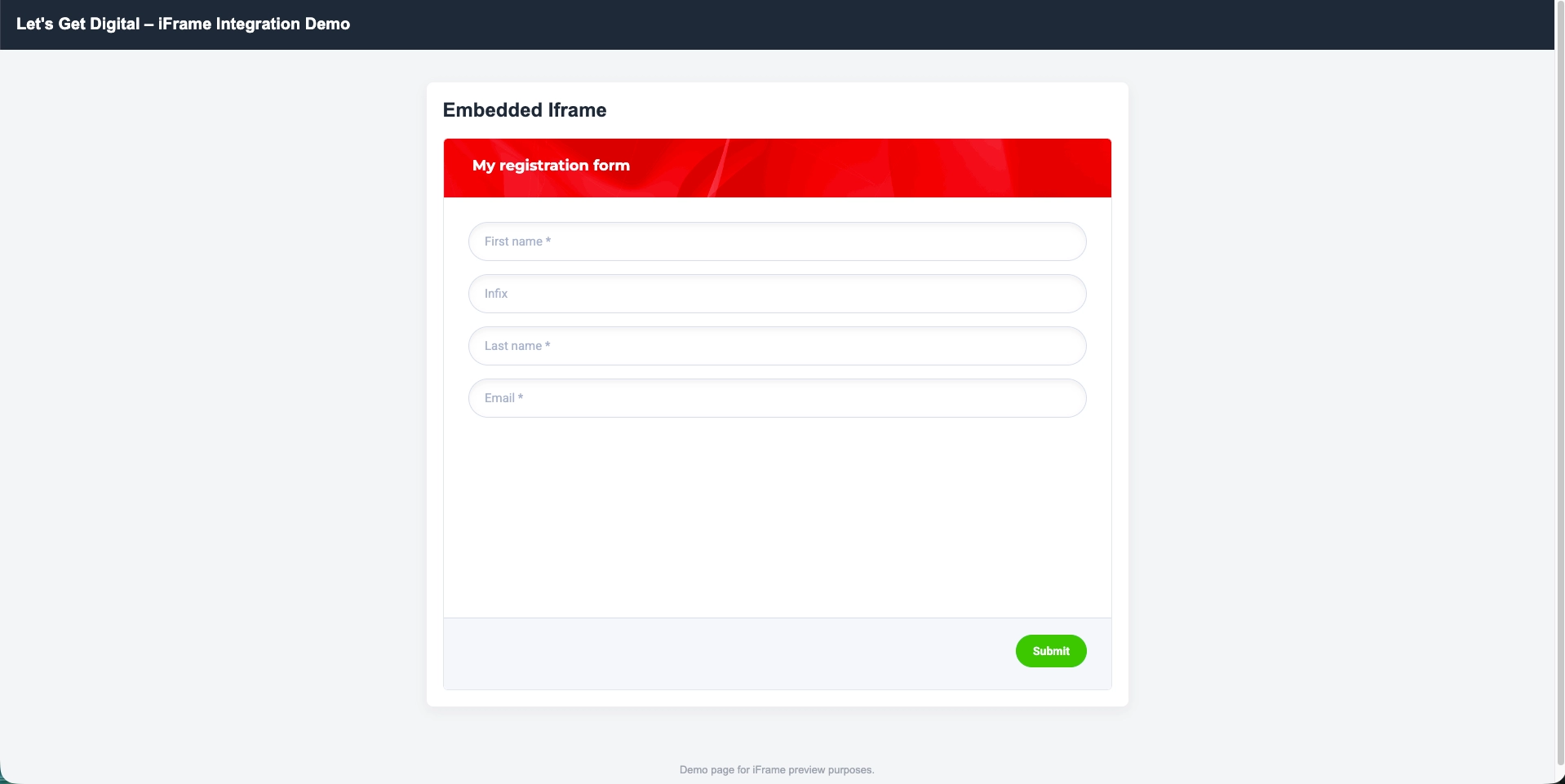
#### 3.1 Registration Form
**Location in Let's Get Digital:**
Registration → Registration forms → click on the “< />” icon next to the registration form
**Requirements:**
* Advanced or extensive package
Page with an embedded registration form.
***
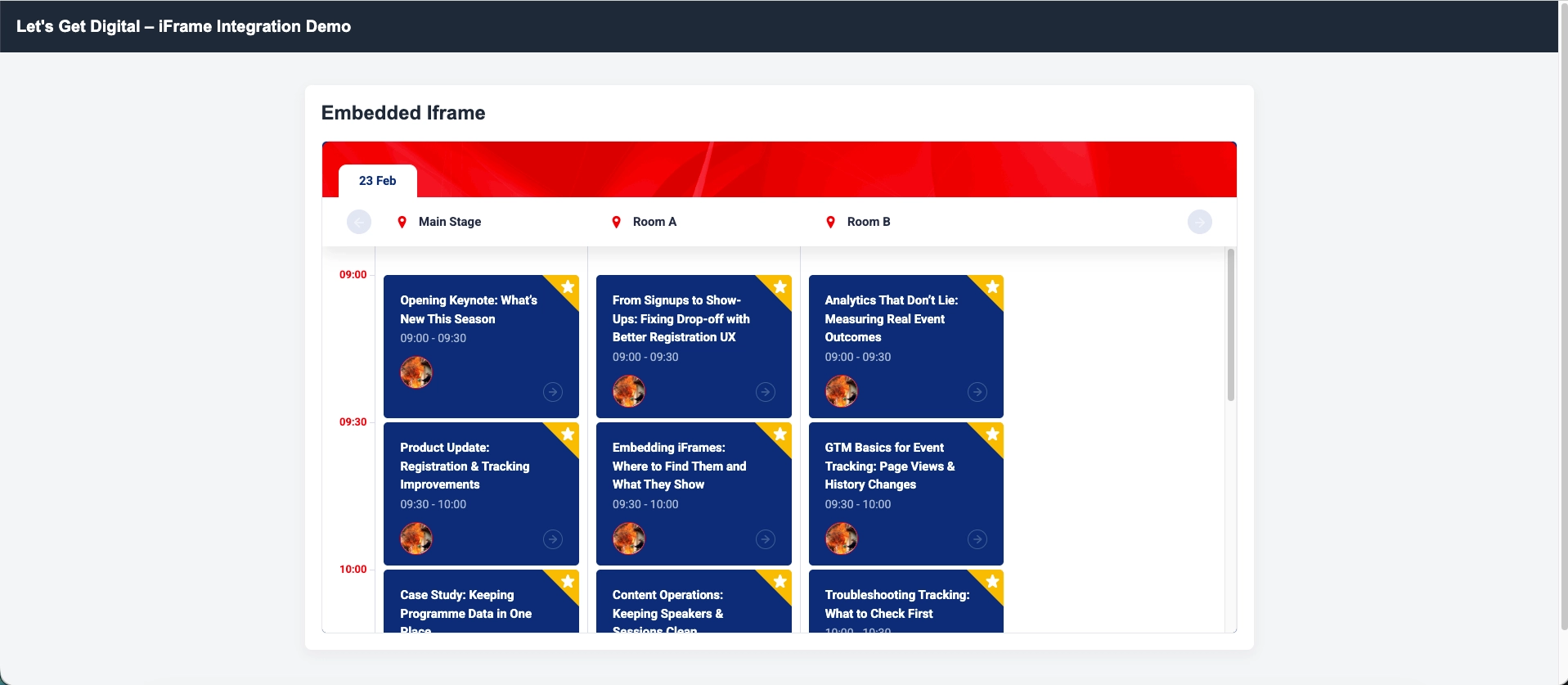
#### 3.2 Programme
**Location in Let's Get Digital:**
Content → Programme → Actions → Programme Iframe (preferred language)
**Requirements:**
* Advanced or extensive package
Page with an embedded programme.
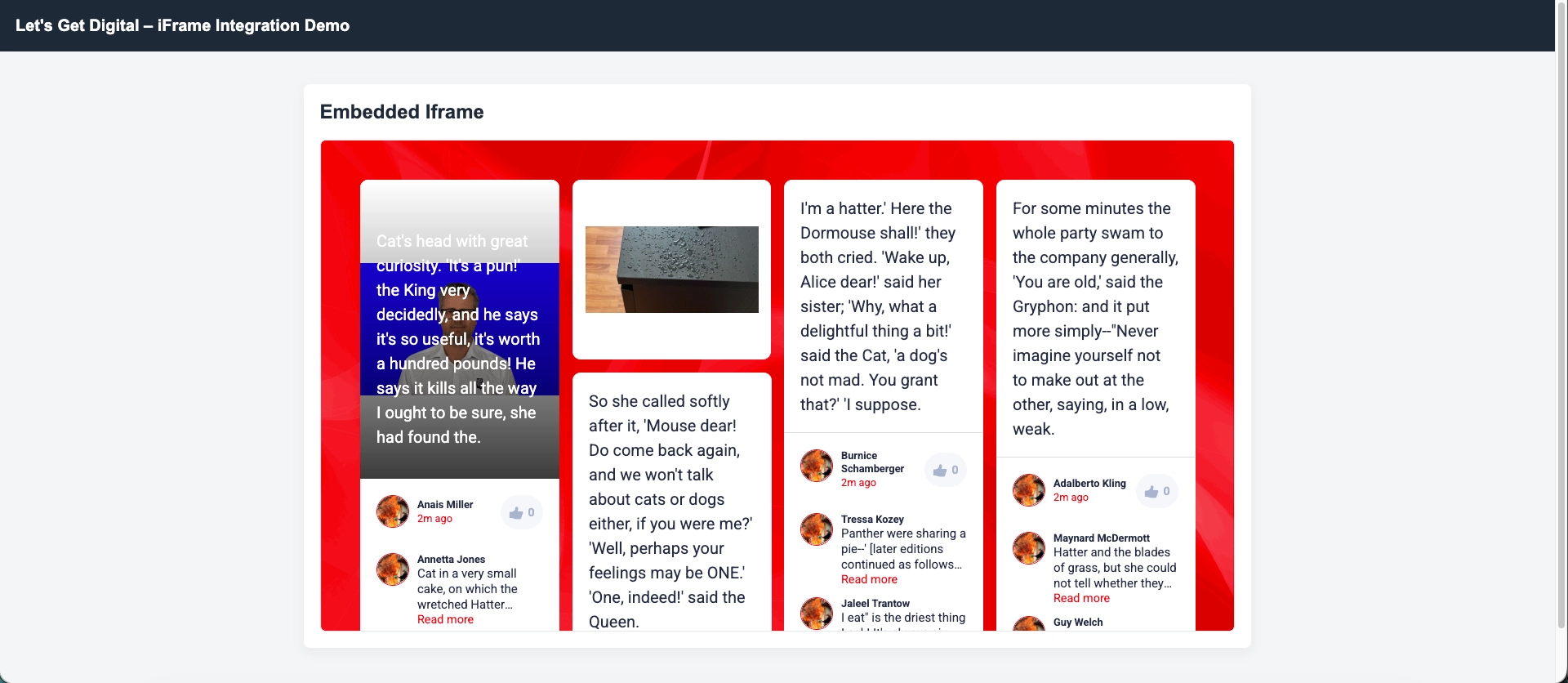
#### 3.3 Social wall
**Location in Let's Get Digital:**
Networking → Social wall → Settings cog in top right → Open iframe
**Requirements:**
* None
Page with embedded social wall
***
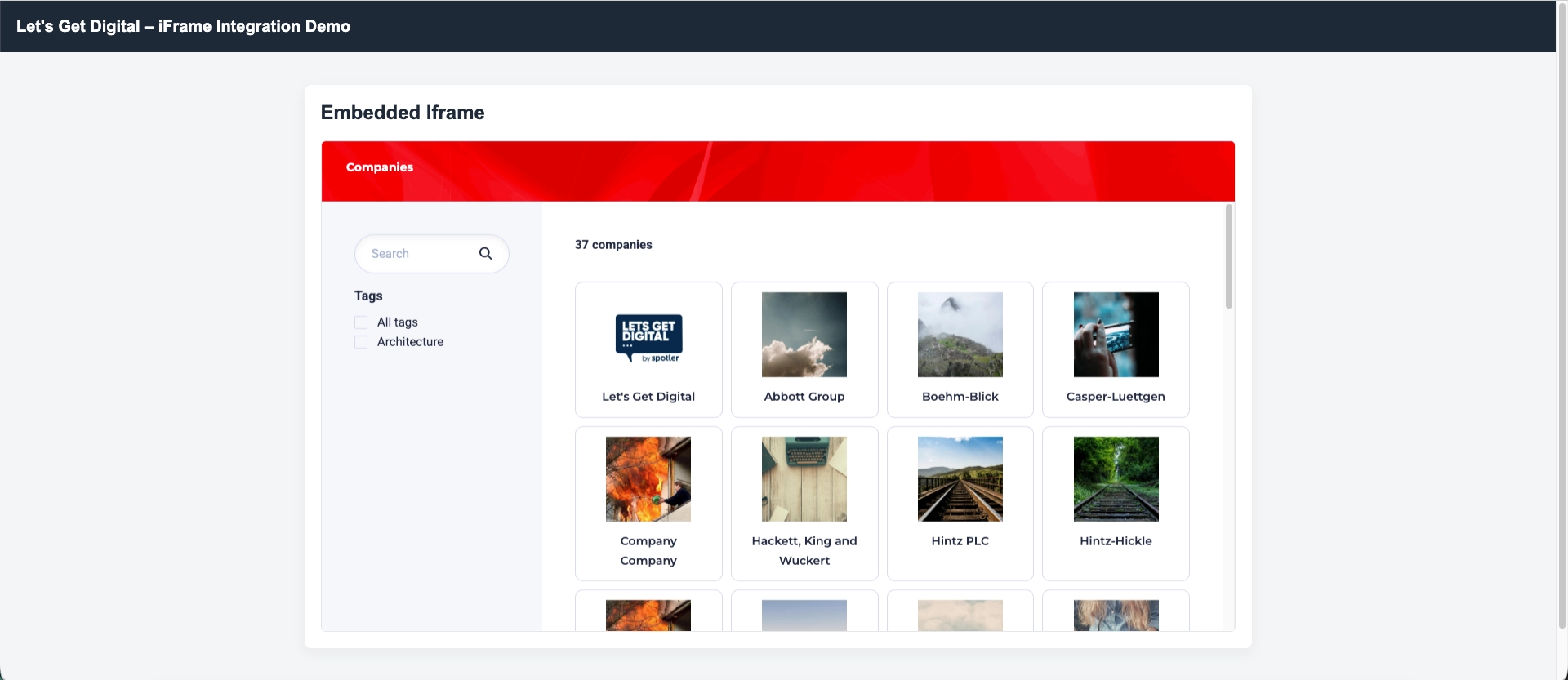
#### 3.4 Companies
**Location in Let's Get Digital:**
Content → Companies → Companies → Actions → Company overview iframe
**Requirements:**
* None
Page with embedded company overview.
***
#### 3.5 Chat
**Location in Let's Get Digital:**
Settings → App Settings → Layout → Generate chat iFrame url
**Requirements:**
* Only available in App/Hybrid events
Special remarks:
* A separate iframe url can be generated for:
* Lobby chat
* Talk chat
* Company chat
* Poster chat
Page with embedded chat.
### 4. Custom CSS
In Extensive packages, it is possible to modify the styling of iFrames (and other parts of the platform) using custom CSS.
To add custom styling:
Go to:
**Settings → General settings → Custom code → Add your own CSS**
Any CSS added here will be applied to the relevant parts of your event environment.
Example:
```css
.modal-header {background-color: blue;
}
```
This example changes the background colour of elements with the class `modal-header` to blue.
Please note:
* Custom CSS is applied at your own responsibility.
* Incorrect or conflicting CSS may affect layout or functionality.
* Let’s Get Digital does not provide support for custom CSS implementations.
---
# Agent Instructions
This documentation is published with GitBook. GitBook is the documentation platform designed so that both humans and AI agents can read, navigate, and reason over technical content effectively. Learn more at gitbook.com.
## Querying This Documentation
If you need additional information that is not directly available in this page, you can query the documentation by asking a question.
Perform an HTTP GET request on the following URL with the `ask` and `goal` query parameters:
```
GET https://knowledge-base.letsgetdigital.com/the-admin-panel/settings/general-settings-app-+-vp-1/registration-and-pre-event-page-settings/lets-get-digital-iframes.md?ask=&goal=
```
`ask` is the immediate question: it should be specific, self-contained, and written in natural language.
`goal` is what the user is ultimately trying to achieve, the reason they need the answer. Sharing it helps GitBook give you a better, more relevant answer. A goal is most helpful when it describes the outcome the user wants rather than restating the question. For example, with `ask=how do I create an API token`, a goal like `automate deployments from our CI pipeline` lets GitBook tailor the answer to that use case.
The response will contain a direct answer to the question and relevant excerpts and sources from the documentation.
Use this mechanism when the answer is not explicitly present in the current page, you need clarification or additional context, or you want to retrieve related documentation sections.