> For the complete documentation index, see [llms.txt](https://knowledge-base.letsgetdigital.com/llms.txt). Markdown versions of documentation pages are available by appending `.md` to page URLs; this page is available as [Markdown](https://knowledge-base.letsgetdigital.com/badge-printing/setting-up-a-zebra-printer.md).

# Setting up a Zebra printer

{% stepper %}
{% step %}

### Install the Zebra printer driver

* Open your computer’s Settings.
* Go to Printers & Scanners

If the Zebra printer does not appear in your list of available printers, you will first need to install the printer driver.

<details>

<summary>Your printer is not listed</summary>

If the Zebra printer is not listed, [download](https://www.zebra.com/gb/en/support-downloads/printers/printer-drivers.html?downloadId=4fd677df-5ae1-4e2f-89ce-f33134dc1e70) the Zebra Windows Printer Driver (v10).

1. Run the installer and follow the setup instructions.
2. When prompted to select a printer model, select **ZDesigner ZD421-203dpi ZPL**
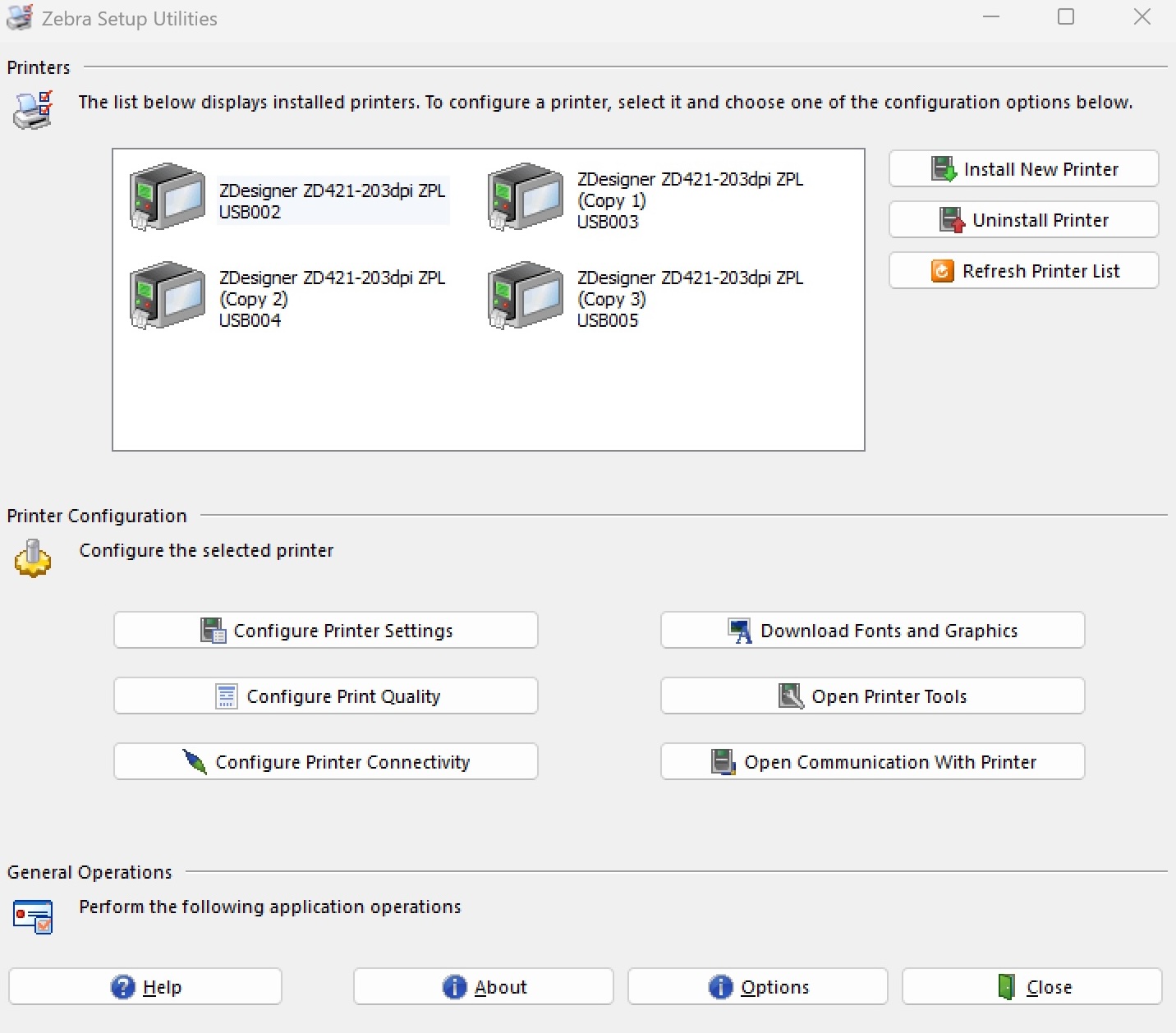
<div data-with-frame="true"><figure><img src="/files/RMLQwhKKliS8XtCzhJIv" alt=""><figcaption><p>Zebra Windows Printer Driver showing any installed printers</p></figcaption></figure></div>

Once installed, the printer should appear in your Printers & Scanners list.

</details>
{% endstep %}

{% step %}

### Open the Zebra printer configuration panel

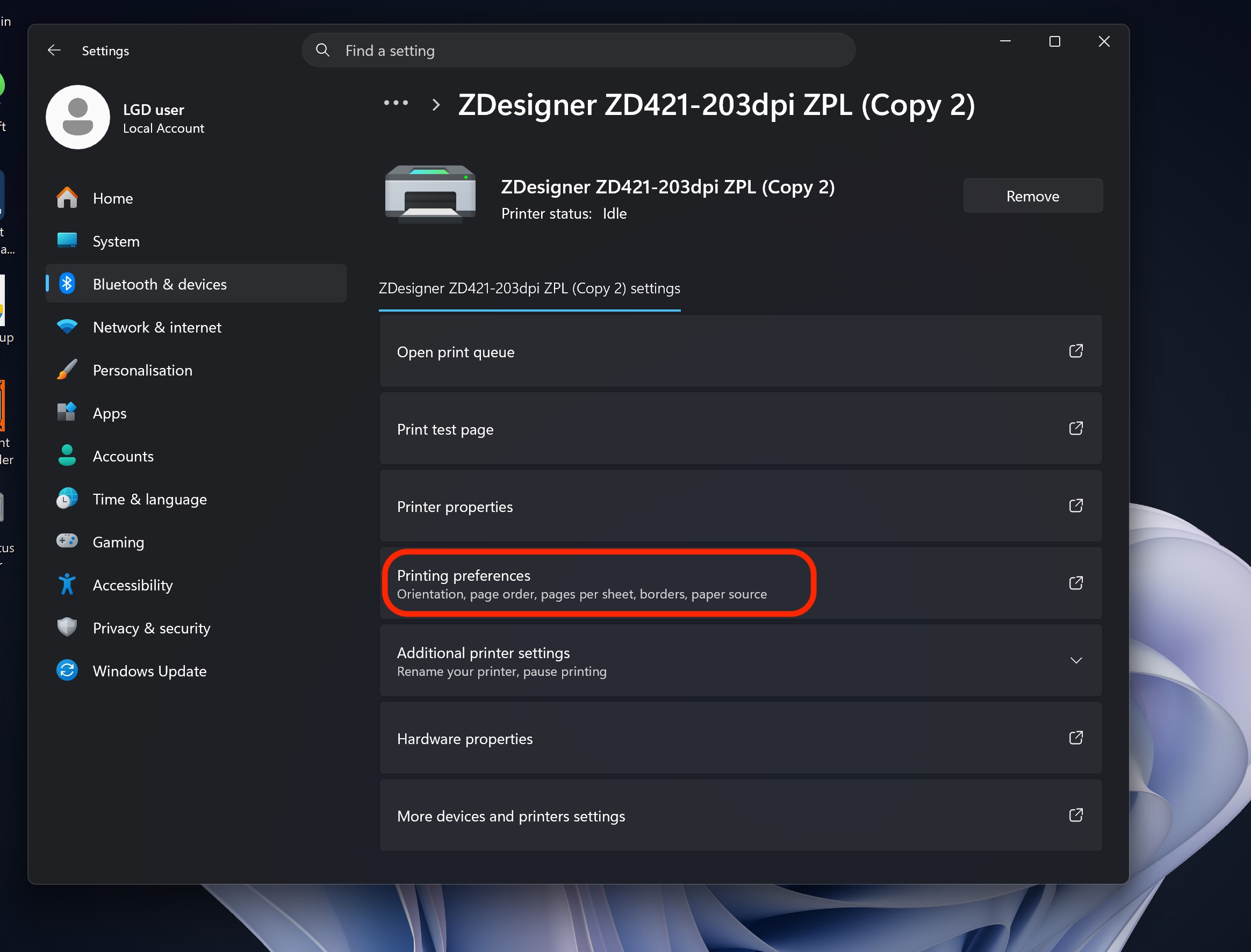
Once the printer drivers are installed and the device is detected, the printer must be configured to accept the badge labels and behave appropriately.&#x20;

1. Go to <kbd>Settings</kbd> > <kbd>Printers & Scanners</kbd>. Open up Select your  Printing Preferences.
2. Select your Zebra printer.
3. Open <kbd>Printing Preferences</kbd>.

<div data-with-frame="true"><figure><img src="/files/T1IYuqTnuWjxf5GFjFqO" alt="" width="563"><figcaption><p>Printer settings hub showing the printer preferences higlighted in red</p></figcaption></figure></div>
{% endstep %}

{% step %}

### Set the label size&#x20;

{% hint style="warning" %}
Ensure sure the selected size matches the label roll loaded in the printer.
{% endhint %}

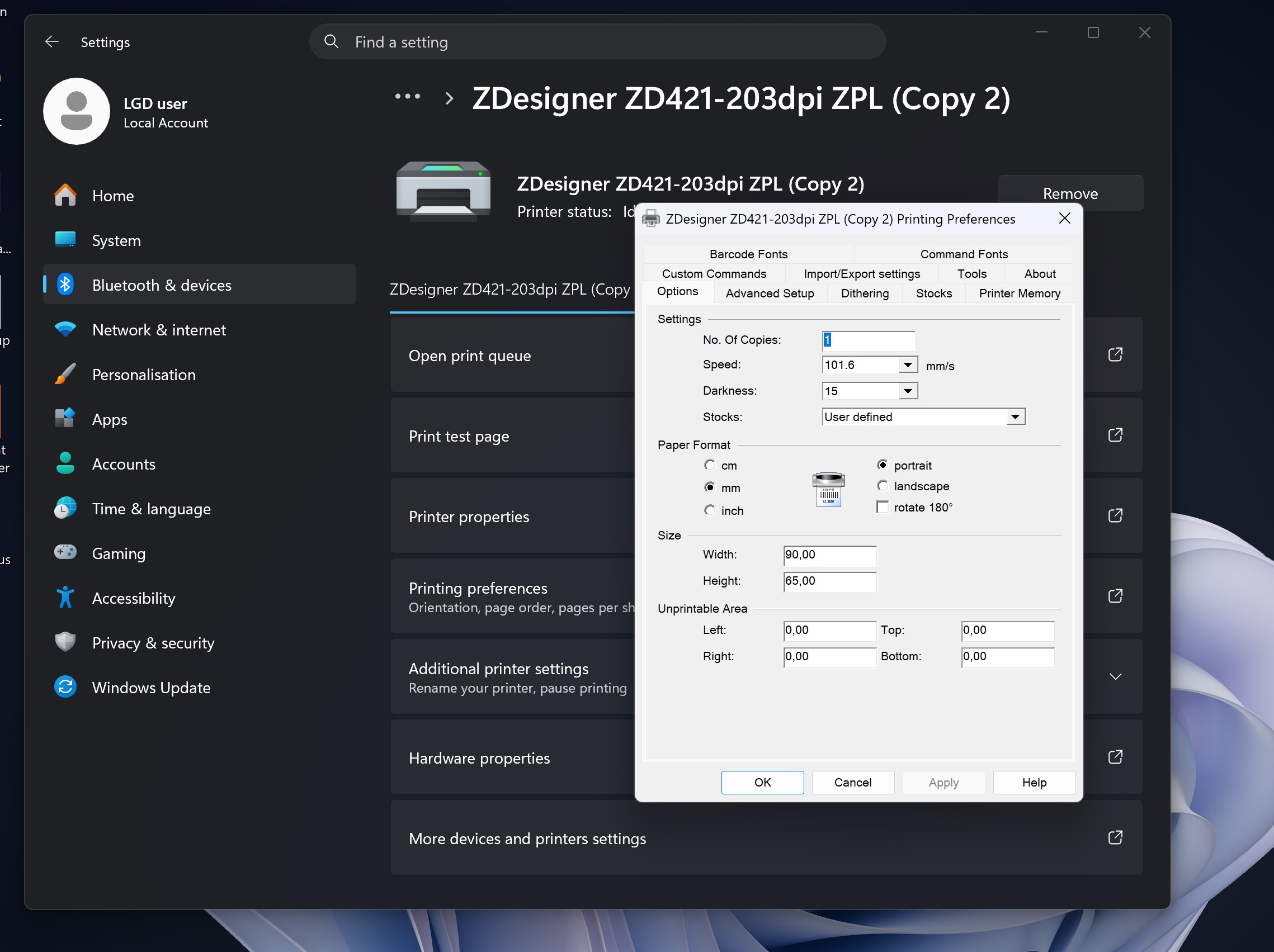
In the Options tab, configure the label size depending on the badge format used for your event.

| Badge type | Width (mm) | Height (mm) |
| ---------- | ---------- | ----------- |
| Large      | 90         | 65          |
| Small      | 90         | 40          |

<div data-with-frame="true"><figure><img src="/files/XXNfTUCbSmzWuIbhPgcQ" alt="" width="563"><figcaption><p>Zebra printing preferences for Let's Get Digital badges</p></figcaption></figure></div>
{% endstep %}

{% step %}

### Configure advanced settings&#x20;

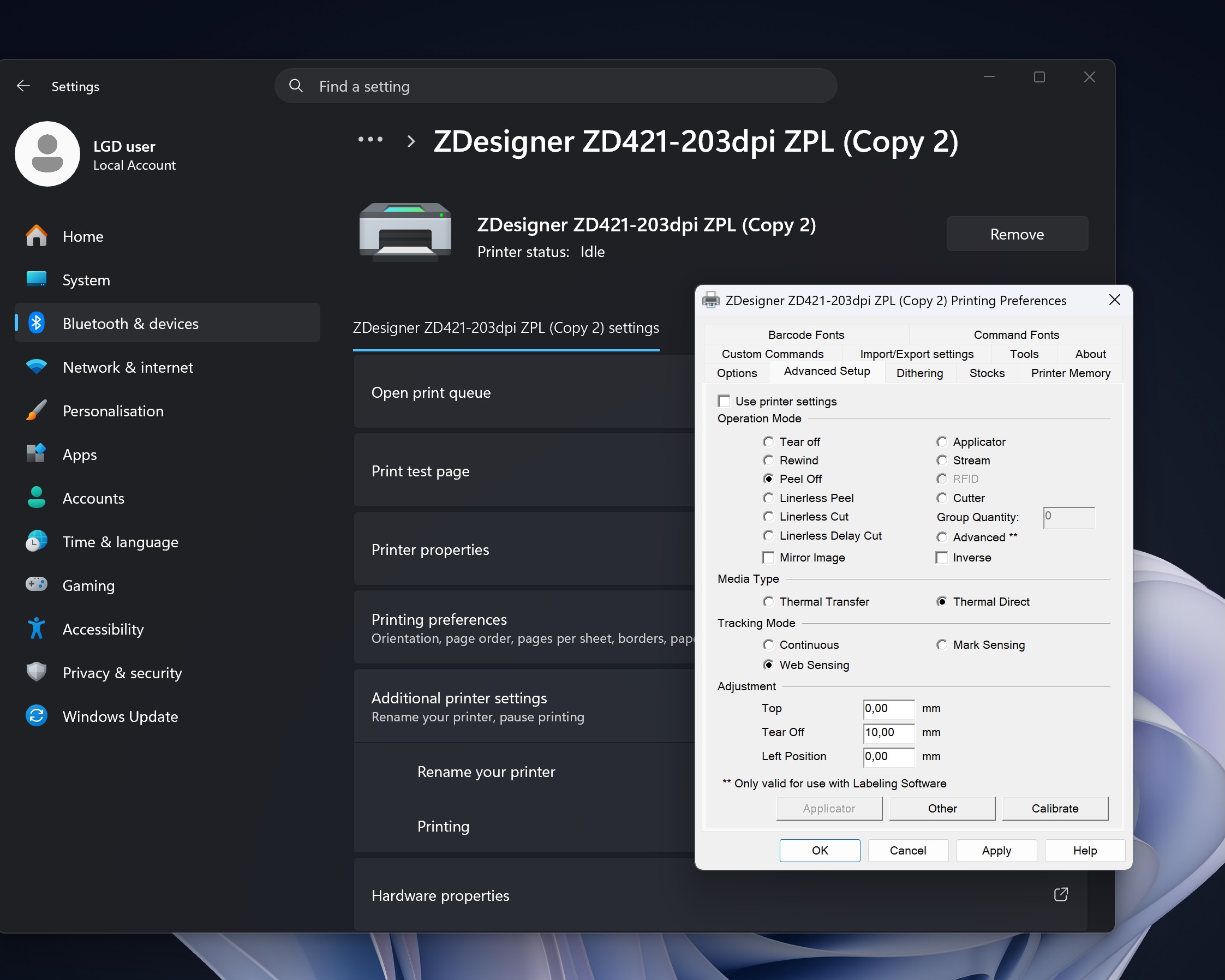
Open the Advanced Setup section and apply the required configuration for badge printing.

These settings ensure the printer works correctly with the dispenser (peel-off function) and aligns the labels properly.

<div data-with-frame="true"><figure><img src="/files/RtsIYARVl0EjXUaVAg8e" alt="" width="563"><figcaption><p>Advanced printing preferences of Zebra printer</p></figcaption></figure></div>

| Setting          | Value          |
| ---------------- | -------------- |
| Operation Mode   | Peel Off       |
| Mode Type        | Thermal Direct |
| Tracking Mode    | Web Sensing    |
| Adjustment Top   | 0.00 mm        |
| Tear Off         | 10.00 mm       |
| Left Position    | 0.00 mm        |
| {% endstep %}    |                |
| {% endstepper %} |                |

### Troubleshooting

<details>

<summary> <strong>Printer not applying new settings</strong></summary>

Sometimes after changing the printer's settings, the printer doesn't apply them. To force it to accept the new settings, press the **Pause** and **Cross** buttons simultaneously for 2 seconds. A few test prints will come out, after which the printer should recognise the settings.

</details>


---

# Agent Instructions
This documentation is published with GitBook. GitBook is the documentation platform designed so that both humans and AI agents can read, navigate, and reason over technical content effectively. Learn more at gitbook.com.

## Querying This Documentation
If you need additional information that is not directly available in this page, you can query the documentation dynamically by asking a question.

Perform an HTTP GET request on the current page URL with the `ask` query parameter, and the optional `goal` query parameter:

```
GET https://knowledge-base.letsgetdigital.com/badge-printing/setting-up-a-zebra-printer.md?ask=<question>&goal=<endgoal>
```

`ask` is the immediate question: it should be specific, self-contained, and written in natural language.
`goal` is optional and describes the broader end goal you are ultimately trying to accomplish on behalf of the user. GitBook uses it to tailor the answer towards what is most useful for that goal.

The response will contain a direct answer to the question and relevant excerpts and sources from the documentation.

Use this mechanism when the answer is not explicitly present in the current page, you need clarification or additional context, or you want to retrieve related documentation sections.