> For the complete documentation index, see [llms.txt](https://knowledge-base.letsgetdigital.com/llms.txt). Markdown versions of documentation pages are available by appending `.md` to page URLs; this page is available as [Markdown](https://knowledge-base.letsgetdigital.com/adding-users-and-ticketing/paid-ticketing-with-stripe/stripe-configuration.md).
# Stripe configuration
A number of settings can be enabled or customised to tailor the ticketing experience to your particular event. These options can be manged in the Paid Tickets overview in the Admin Panel.
### Payment methods
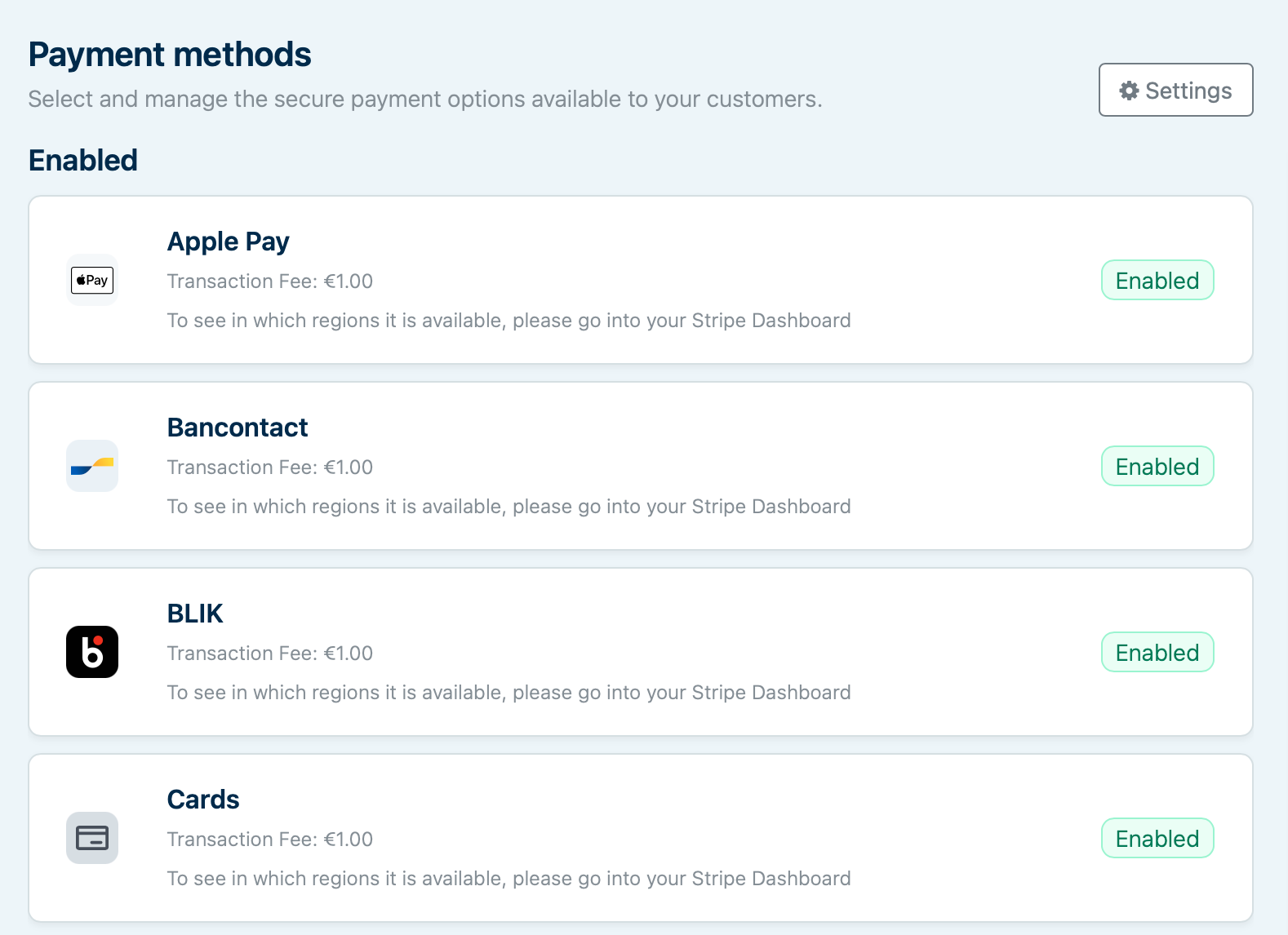
Stripe supports a large number of various payment methods. Many are available out of the box, without any further work required. Others require specific set-up steps, such as PayPal, whilst others are region-specific. These methods can be enabled or disabled by clicking Settings and selecting the options you wish to offer.
If you encounter any issues relating to the availability of a particular payment method, check in Stripe that it is available and active. If it isn't, contact Stripe for support. If it is active but not working in Let's Get Digital, please contact Support.
{% hint style="info" %}
The following options can be changed in Payment settings
{% endhint %}
Active Stripe integrations have two modes: Test Mode and Live Mode:
* **Test mode:** the payment flow can be tested without being direct to Stripe payments. Instead, a popup appears asking for a key (visible at **Settings - Integrations - Stripe**) which confirms the completes the payment.
* **Live mode**: the full payment flow is active and anyone registering an account together after selecting products in the registration form are sent to Stripe to finalise their payment.
Additionally, in the Stripe settings, the person paying the transaction fee can be set:
* **Customer (added in checkout)**: A fee of 1 euro is added per ticket to the total due at checkout.
* **Event Organiser (deducted from payout)**: A fee of 1 euro per ticket is deducted from the payout in Stripe.
### Invoice Settings
#### Ticket reassignment
{% hint style="info" %}
For more info, see [Ticket Reassignment](/adding-users-and-ticketing/paid-ticketing-with-stripe/ticket-reassignment.md)
{% endhint %}
| Setting | Description |
| -------------------------------------------------------------------------- | -------------------------------------------------------------------------------------------------------------------------------------------------------- |
| Enable Reassign | Tickets can be reassigned from a user and given to a new user. |
| Last ticket can be reassigned | If the user has only one ticket, it can be assigned to someone else instead. |
| Only the first ticket can be downloaded, the other(s) should be reassigned | Allows the ticketholder to only download their own ticket and forces them to redistribute the rest so that they can be downloaded by the intended owner. |
### Invoice settings
In addition to immediate billing, it is also possible for customers to opt to receive an invoice and pay at a later date. This functionality can be set up in the Stripe integration's settings: Settings > API & Integrations > Integrations > Stripe
| Setting | Description |
| --------------------------------------- | ------------------------------------------------------------------------------------------------- |
| Invoice payment term (days) | Set the the number of days before an invoice is due (30 if left empty). |
| Minimum order value for invoice payment | Set a minimum value of an order before the option to select payment by invoice becomes available. |
When Enable invoice as a payment method is checked, customers will see two options when checking out; Pay Now, and Pay with Invoice. Additionally, additional relevant invoice details input fields are added to facilitate invoicing.
The following fields can be chosen to be added to the form and will be displayed on the invoice when filled in:
| Field name | Description |
| ---------------------------- | ------------------------------------------------------------------------------------------------------------------------------------------------ |
| Company details | Default: adds the fields *Company name* (required), *VAT number* (optional) |
| Address | Mandatory field to include address info |
| Country | Mandatory field for including the billing country |
| Invoice reference | Adds a reference field to be displayed on the invoice |
| Invoice reference field 1 | When *invoice reference* has been checked, this field allows you give the reference field a name e.g. *PO Number* to be displayed on the invoice |
| Additional invoice reference | The option to add and name a second invoice reference field |
Additionally, it is possible to always include these fields without enabling delayed payments by enabling the second checkbox Request invoice details (company name, tax ID) during checkout.
---
# Agent Instructions
This documentation is published with GitBook. GitBook is the documentation platform designed so that both humans and AI agents can read, navigate, and reason over technical content effectively. Learn more at gitbook.com.
## Querying This Documentation
If you need additional information that is not directly available in this page, you can query the documentation by asking a question.
Perform an HTTP GET request on the following URL with the `ask` and `goal` query parameters:
```
GET https://knowledge-base.letsgetdigital.com/adding-users-and-ticketing/paid-ticketing-with-stripe/stripe-configuration.md?ask=&goal=
```
`ask` is the immediate question: it should be specific, self-contained, and written in natural language.
`goal` is what the user is ultimately trying to achieve, the reason they need the answer. Sharing it helps GitBook give you a better, more relevant answer. A goal is most helpful when it describes the outcome the user wants rather than restating the question. For example, with `ask=how do I create an API token`, a goal like `automate deployments from our CI pipeline` lets GitBook tailor the answer to that use case.
The response will contain a direct answer to the question and relevant excerpts and sources from the documentation.
Use this mechanism when the answer is not explicitly present in the current page, you need clarification or additional context, or you want to retrieve related documentation sections.