> For the complete documentation index, see [llms.txt](https://knowledge-base.letsgetdigital.com/llms.txt). Markdown versions of documentation pages are available by appending `.md` to page URLs; this page is available as [Markdown](https://knowledge-base.letsgetdigital.com/the-admin-panel/settings/general-settings-app-+-vp-1/language/multi-language.md).
# Multi Language
The multi language feature can be used to set both the virtual platform as well as the app up in different languages for attendees to use
{% hint style="info" %}
Available for: online events and apps; packages: extensive
{% endhint %}
{% hint style="danger" %}
**Note:** Using this feature means that a considerable amount of additional work needs to be done by the organisers to set up the event!
{% endhint %}
## How to set it up
In the admin panel, navigate to 'Settings', choose 'General settings' and then click on 'Event information' on the left-hand side menu. Scroll down to 'Language settings' to find the setting 'Enable Multi-language'. Make sure it's enabled. Below, you can choose which languages should be available.
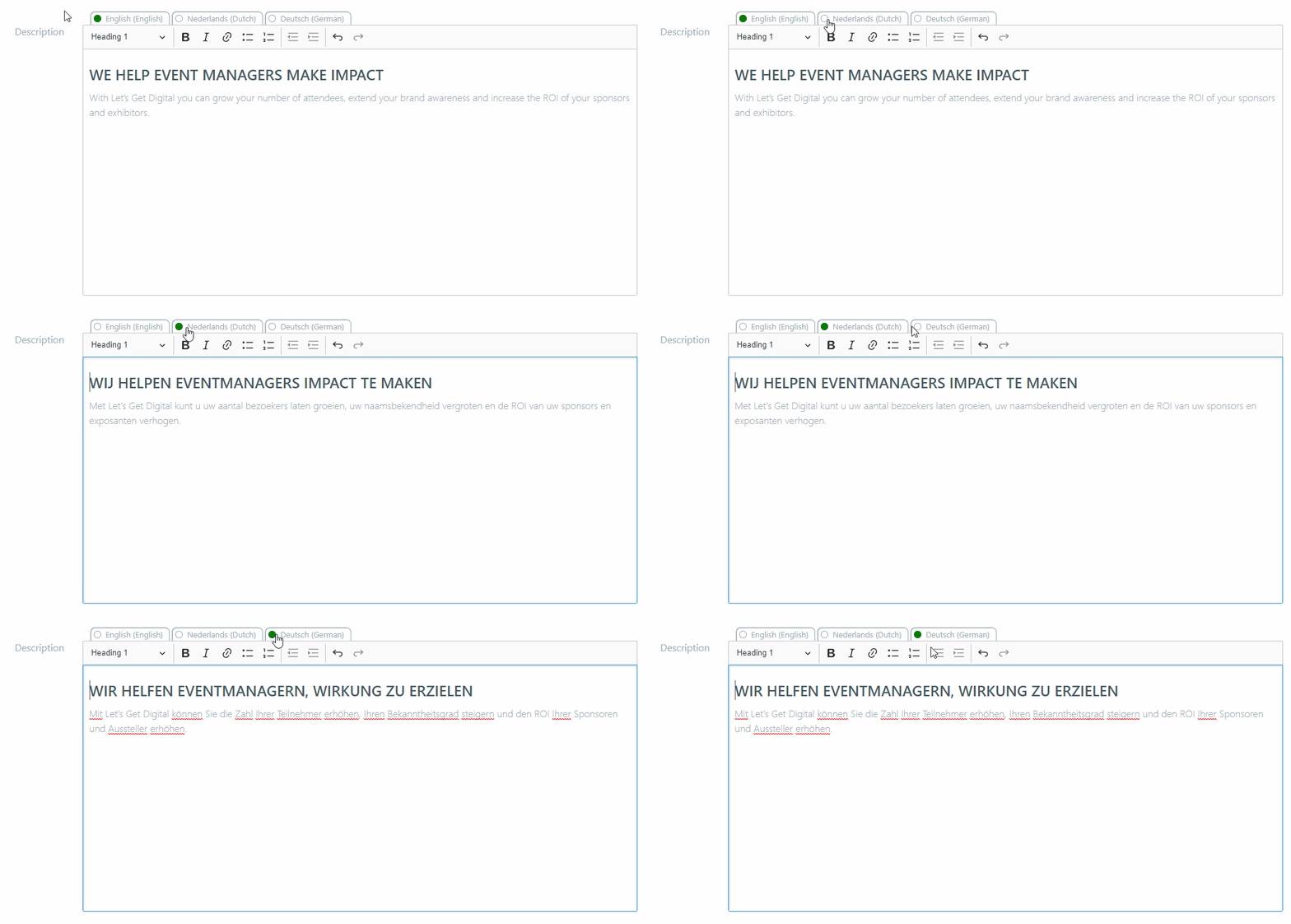
After setting it up, you will find that for various options throughout the admin panel, you can enter different texts for the same 'data field', for example, program titles, location names and company descriptions:
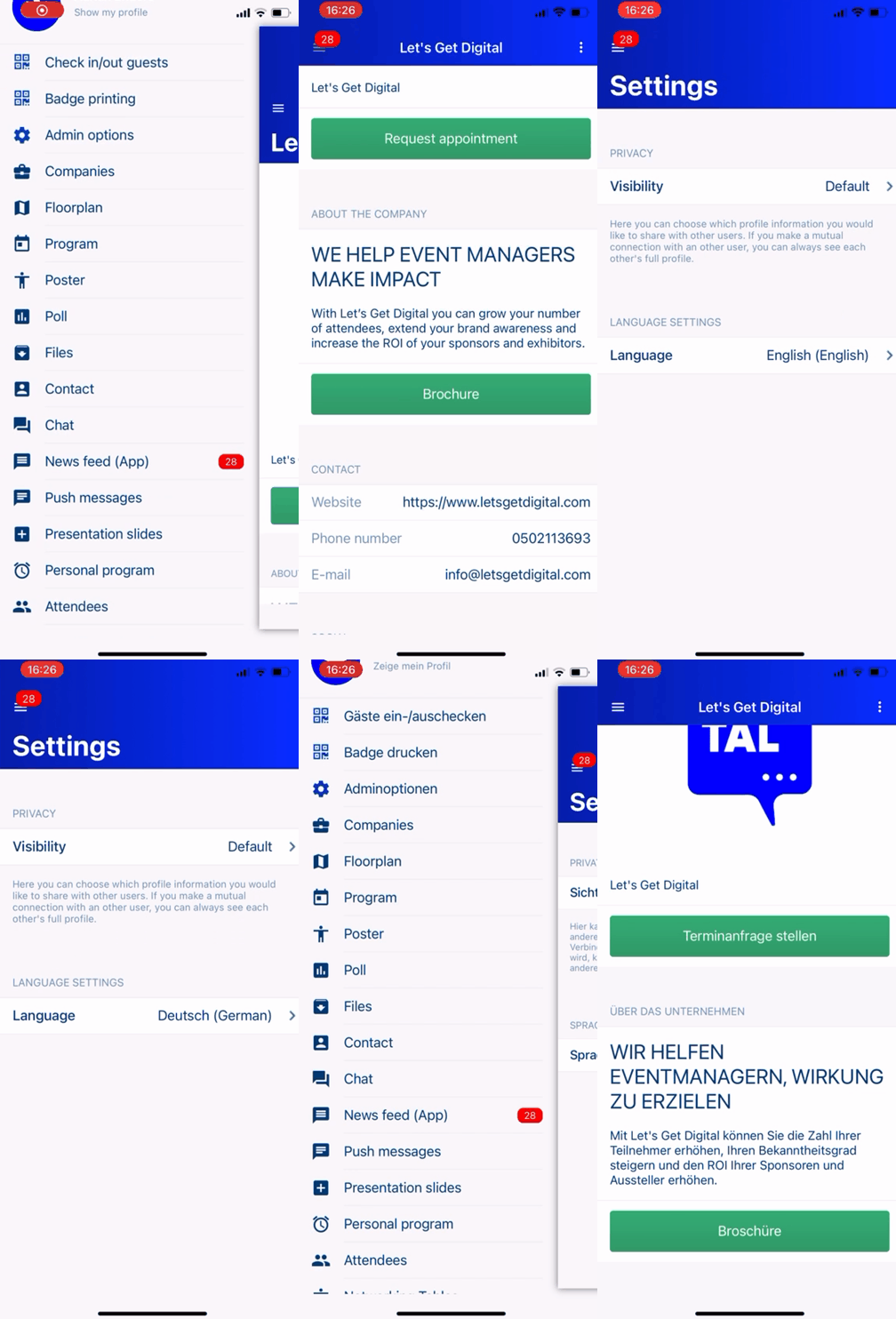
The users will then see only the text in their relevant language in the platform/app. If that corresponding field has not been filled out, the default language of your event will be displayed to the users.
### Language tags
Language tags are tags that will be assigned to all users depending on which language they prefer for the event. There are three ways how the users can get their language tag:
1. Registration form: If you use the [Let's Get Digital registration form](https://knowledge-base.letsgetdigital.com/lgd-features/registration-form), you can add a dropdown menu for the users to choose their language.
2. Import: When you use the [import tool](https://knowledge-base.letsgetdigital.com/lgd-features/bulk-import-data?q=import), you can import the specific language tags for the users.
3. After log-in: The users choose their language after they logged in to the platform/app themselves.
When sending out push notifications or setting up CTAs, different texts can be written so all users receive them in their relevant language. The push notifications can be sent to all users with the relevant language tag. When users switch languages, their language tag also changes.
## The final result
Switching languages in the virtual platform
Switching languages in the app
---
# Agent Instructions
This documentation is published with GitBook. GitBook is the documentation platform designed so that both humans and AI agents can read, navigate, and reason over technical content effectively. Learn more at gitbook.com.
## Querying This Documentation
If you need additional information that is not directly available in this page, you can query the documentation dynamically by asking a question.
Perform an HTTP GET request on the current page URL with the `ask` query parameter, and the optional `goal` query parameter:
```
GET https://knowledge-base.letsgetdigital.com/the-admin-panel/settings/general-settings-app-+-vp-1/language/multi-language.md?ask=&goal=
```
`ask` is the immediate question: it should be specific, self-contained, and written in natural language.
`goal` is optional and describes the broader end goal you are ultimately trying to accomplish on behalf of the user. GitBook uses it to tailor the answer towards what is most useful for that goal.
The response will contain a direct answer to the question and relevant excerpts and sources from the documentation.
Use this mechanism when the answer is not explicitly present in the current page, you need clarification or additional context, or you want to retrieve related documentation sections.