> For the complete documentation index, see [llms.txt](https://knowledge-base.letsgetdigital.com/llms.txt). Markdown versions of documentation pages are available by appending `.md` to page URLs; this page is available as [Markdown](https://knowledge-base.letsgetdigital.com/the-admin-panel/content/application-1/photo-albums.md).
# Photo albums (App)
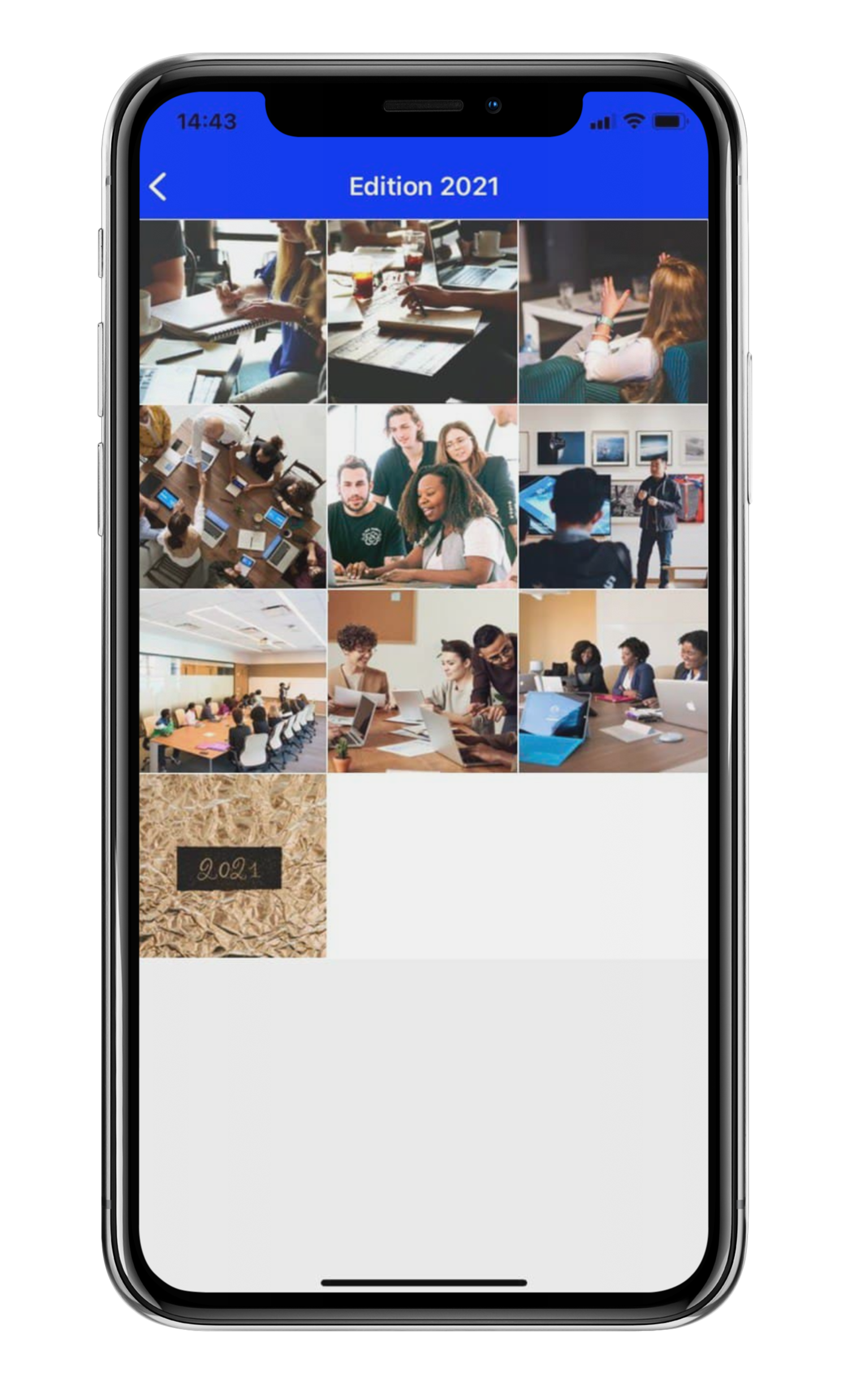
There is a dedicated section for every picture that can all be saved in one location and is customisable. This article explains all of the associated features of photo albums and how to manage them.
> Available for: in-person events; packages: core, advanced and extensive
## Managing photo albums
### Creating an album
1. Open the Admin panel
2. Go to Content --> Photo albums (App)
3. Click on New album
4. Enter a name for your album.
5. Click on 'Add album'.
### Manage your photo album
Each photo album has three action icons to the right:
 Edit/customise icon: Click here to make fill, edit, and customise your album.
Sort: Change the order
 Delete icon: Click here to remove the photo album altogether.
### Adding photo's to your album
1. Open the home page.
2. Click on the edit/customise icon next to your album (Under actions).
3. A) Click on 'Upload a file'. \
B) Drag and drop your photo's into the allocated space.

{% hint style="success" %}
**Tip:** Images are saved automatically. Refresh your web browser and you'll be able to see them as loaded into the album.
{% endhint %}
### Editing/customising your album
There are several edits/customisations you can make to your album. Flick between the tabs below to see exactly what you can do:
{% tabs %}
{% tab title="Thumbnails" %}
1. Open [the home page](https://knowledge-base.letsgetdigital.com/the-admin-panel/navigation/application/the-navigation-menu).
2. Click on the edit/customisation icon next to your album (Under actions).
3. Click on the star icon in the top left corner of the photo you wish to make a thumbnail.

{% endtab %}
{% tab title="The album name" %}
1. Open [the home page](https://knowledge-base.eventinsight.io/general-app-settings/content/photo-albums#the-home-page).
2. Click on the edit/customisation icon next to your album (Under actions).
3. Click on 'edit' next to the album name (At the top of the page).
4. Enter a new name.
5. Click on 'Save changes'.

{% endtab %}
{% tab title="Deleting individual photo's" %}
1. Open the[ home page](https://knowledge-base.letsgetdigital.com/the-admin-panel/navigation/application/the-navigation-menu).
2. Click on the edit/customisation icon next to your album (Under actions).
3. Click on the cross icon in the top right of the photo you wish to delete.

{% endtab %}
{% endtabs %}
## Integration
Follow the instructions in the navigation article [here](https://knowledge-base.letsgetdigital.com/the-admin-panel/navigation/application/the-navigation-menu) to find out how to add this (and other features) to your app!
## The end result

 ---
# Agent Instructions
This documentation is published with GitBook. GitBook is the documentation platform designed so that both humans and AI agents can read, navigate, and reason over technical content effectively. Learn more at gitbook.com.
## Querying This Documentation
If you need additional information that is not directly available in this page, you can query the documentation by asking a question.
Perform an HTTP GET request on the following URL with the `ask` and `goal` query parameters:
```
GET https://knowledge-base.letsgetdigital.com/the-admin-panel/content/application-1/photo-albums.md?ask=&goal=
```
`ask` is the immediate question: it should be specific, self-contained, and written in natural language.
`goal` is what the user is ultimately trying to achieve, the reason they need the answer. Sharing it helps GitBook give you a better, more relevant answer. A goal is most helpful when it describes the outcome the user wants rather than restating the question. For example, with `ask=how do I create an API token`, a goal like `automate deployments from our CI pipeline` lets GitBook tailor the answer to that use case.
The response will contain a direct answer to the question and relevant excerpts and sources from the documentation.
Use this mechanism when the answer is not explicitly present in the current page, you need clarification or additional context, or you want to retrieve related documentation sections.
---
# Agent Instructions
This documentation is published with GitBook. GitBook is the documentation platform designed so that both humans and AI agents can read, navigate, and reason over technical content effectively. Learn more at gitbook.com.
## Querying This Documentation
If you need additional information that is not directly available in this page, you can query the documentation by asking a question.
Perform an HTTP GET request on the following URL with the `ask` and `goal` query parameters:
```
GET https://knowledge-base.letsgetdigital.com/the-admin-panel/content/application-1/photo-albums.md?ask=&goal=
```
`ask` is the immediate question: it should be specific, self-contained, and written in natural language.
`goal` is what the user is ultimately trying to achieve, the reason they need the answer. Sharing it helps GitBook give you a better, more relevant answer. A goal is most helpful when it describes the outcome the user wants rather than restating the question. For example, with `ask=how do I create an API token`, a goal like `automate deployments from our CI pipeline` lets GitBook tailor the answer to that use case.
The response will contain a direct answer to the question and relevant excerpts and sources from the documentation.
Use this mechanism when the answer is not explicitly present in the current page, you need clarification or additional context, or you want to retrieve related documentation sections.